
Where we left off
Part 1 built the licensing control plane. Part 2 took vCenter and the four hosts to 9.1 and finally got the 64 cores assigned. Everything that was going to be upgraded has been upgraded.
Which means this post isn’t an upgrade at all. It’s a deployment. The VCF Installer is going to stand up NSX Manager, SDDC Manager, and the VCF management services next to the vCenter you already have, adopt the VCF Operations instance from Part 1, and declare the whole thing a management domain. Nothing you own gets replaced. Things get added around it and then it all gets a new name.
That’s converge, and it’s the step where the drums stop being a metaphor. This is the gate.
Converge, import, or rebuild
Three ways in, and it’s worth being clear which one this is before you download anything.
Rebuild is greenfield. New hosts, new everything, migrate workloads afterward. Cleanest result, most work, and it needs hardware you may not have.
Import brings an existing vSphere environment under a VCF fleet without upgrading it yet. It’s an onboarding operation, and it’s the one Broadcom points you at when you’ve got a back-in-time problem like the one in Part 2.
Converge is what we’re doing. The existing vCenter, already on 9.1, becomes the management domain’s vCenter. The Installer deploys the pieces that don’t exist yet and wires them together. You end up with a real VCF instance built around infrastructure you already run.
One thing the docs state plainly and your capacity plan should too: the VCF Installer appliance converts itself into SDDC Manager at the end. It doesn’t deploy a separate one. So the 16 GB you give the installer is not a temporary cost you reclaim afterward, it’s SDDC Manager’s footprint from here on. My own plan document had “power it off to reclaim the RAM” in it. Don’t do that.
A note on scale before we start
This is a lab-sized converge, and I’d rather say so now than have you discover it in the sizing step. Four hosts, the Simple deployment model, and a number of components that would be clustered in production are single-node here: one NSX Manager instead of a three-node cluster, one VCF Operations node instead of an HA pair, one cloud proxy. Nothing about that is unsupported. The docs call for a minimum of two hosts with external storage for Simple and I have four, and it’s the right decision for an environment whose management plane and workloads share one failure boundary.
But it means the resource numbers in this post are the floor, not the recommendation. If this were carrying production, the deployment model would be High Availability, NSX would be three nodes, and most of the figures below would roughly double. Read the sizing step as “here is the least you can get away with,” and plan from there.
What You’ll Need
This one has a longer list than the previous two, and most of it is DNS.
FQDNs, all resolving forward and reverse, lowercase:
| Component | FQDNs | Notes |
|---|---|---|
| Cloud proxy | 1 | |
| NSX Manager | 2 | One for the cluster VIP, one for the appliance (Simple model) |
| VCF management services | 4 | Fleet components, instance components, VCF services runtime, Identity Broker |
| SDDC Manager | 0 | Not needed. The Installer becomes SDDC Manager, so its own FQDN carries over |
| License Server | 0 | Already deployed in Part 1 |
An IP pool for the VCF management services: minimum 12 addresses, and they must be distinct from the four FQDNs above. More on the shape of that pool later, because my plan got it wrong.
Capacity on the cluster. The wizard’s own numbers for a Simple deployment against this environment: 2 hosts minimum, 56 vCPUs, 142 GB RAM, 4,370 GB disk. Plus a recommended 20% buffer on top, which I did not have, and which the Installer will warn you about and then let you proceed.
SSH enabled on vCenter. vCenter 9.x ships with it off. Converge validation needs it on. Nothing in the failing validation will tell you this.
Your Broadcom Support Portal login with access to the VCF Business Services console at vcf.broadcom.com, because the Installer pulls binaries from Broadcom’s depot and you have to register the depot to get an activation code.
A working DNS server address for the Installer appliance itself. I know. Hold that thought.
Part One: The Installer
Step 1: Download the Installer (and do your homework first)
I have never read a EULA. You have never read a EULA. Broadcom knows this, which is why on the download page the checkbox for “I agree to the Terms and Conditions and Compliance Reporting Terms and Conditions” is greyed out until you have clicked both links. Two links, one tick box, and a download button that sits there in the dark until you’ve completed the ritual. It’s the software licensing equivalent of your mom making you look at the vegetables before you leave the table.
Click them both, tick the box, collect your 2.28 GB.
Step 2: Deploy the OVA, and check your DNS before you do anything else
The OVA deploys like any other. Hostname, IP, gateway, DNS servers, password. Mine went to vcf-installer.fsa.lab.
Then I went to configure the online depot and got this:
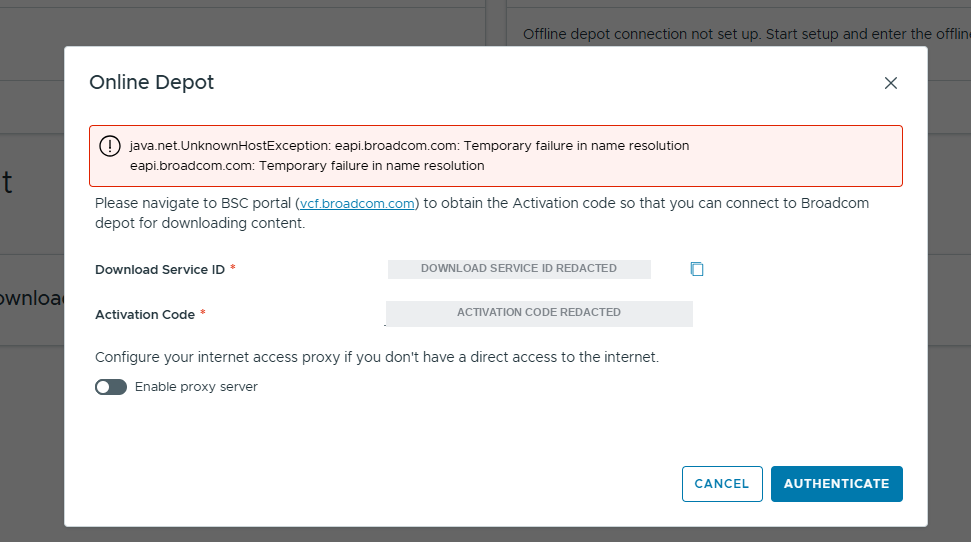
java.net.UnknownHostException: eapi.broadcom.com: Temporary failure in name resolution
That’s an easy error to misread. It happens the moment you click AUTHENTICATE, so the natural assumption is that the activation code is wrong. It isn’t. The appliance never got far enough to present a code. It couldn’t resolve the hostname. “Temporary failure in name resolution” means the resolver got no answer at all, which is a different failure from “no such host.”
Here’s how to tell for certain, and it’s a trick worth having for every appliance in this family.
SSH into the Installer
The shell account is vcf. Not admin. The admin@local account you log into the UI with has no shell, so ssh admin@local@vcf-installer is a dead end. root exists but is console-only through vCenter.
ssh vcf@vcf-installer.fsa.labIf your client throws Too many authentication failures, it’s offering every key in your agent before it tries a password and the server is cutting you off. Force password auth:
ssh -o PubkeyAuthentication=no -o IdentitiesOnly=yes vcf@vcf-installer.fsa.labOnce you’re in, the diagnosis took one command:
vcf@vcf-installer [ ~ ]$ cat /etc/resolv.conf
# No DNS servers known.
search fsa.lab
The search domain applied. The DNS server list did not. One OVF field parsed and its neighbour didn’t. I’d entered two DNS servers comma-separated in the OVA wizard, which is the format the field asks for, and the appliance came up with the search domain intact and zero resolvers. resolvectl status confirmed it from the other direction:
Link 2 (eth0)
    Current Scopes: none
        DNS Domain: fsa.lab
Current Scopes: none. The interface has a search domain and literally nowhere to send a query.
And here’s the punchline: you can’t fix it from there
$ sudo resolvectl dns eth0 10.21.234.10 10.21.234.11
Sorry, user vcf is not allowed to execute '/usr/bin/resolvectl dns eth0 ...' as root
vcf has a narrow sudo allowlist, not general root. Editing the network unit files is out for the same reason, and /etc/resolv.conf was never an option anyway (it’s a symlink into tmpfs that systemd-resolved regenerates). So SSH gets you a precise diagnosis and no way to act on it.
That’s an inversion of the usual advice. Normally “SSH in and fix it” is the power move. Here the appliance is deliberately locked down enough that the shell is a diagnostic tool, not a repair tool. Arguably correct security posture. Definitely an annoying afternoon.
Two real options: console in as root through vCenter and patch it, or delete the appliance and redeploy the OVA with DNS entered correctly. On a fresh appliance with nothing invested in it, redeploy wins every time. I can recall times other VMware appliances had this issue (like HCX for example.) I redeployed with a single DNS server in the field rather than two, and it came up clean.
Tip: what the
vcfshell IS good for. Read-only diagnostics all work fine, and this set answers most “why can’t this appliance talk to X” questions in about a minute:resolvectl status # DNS scopes, per-link resolvers, search domains resolvectl query <hostname> # does name resolution actually work ip -br addr # interfaces and addresses ip route # default route present? ping -c2 <gateway> # reachability curl -vI https://<endpoint> # TLS handshake and cert chain systemctl status <service> # service stateYou just have to be at peace with reading the answer and then fixing it somewhere else.
Step 3: Connect the Depot
With DNS working, back to the Installer’s landing page.
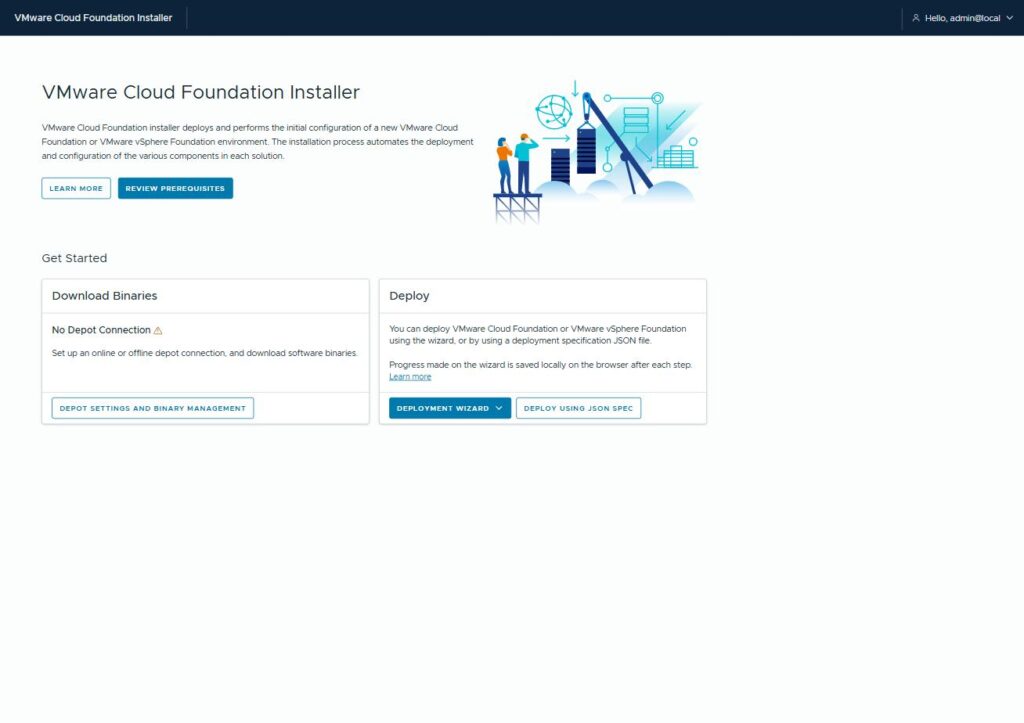
Two cards. Download Binaries (currently “No Depot Connection”) and Deploy. The order is the order. Click DEPOT SETTINGS AND BINARY MANAGEMENT.
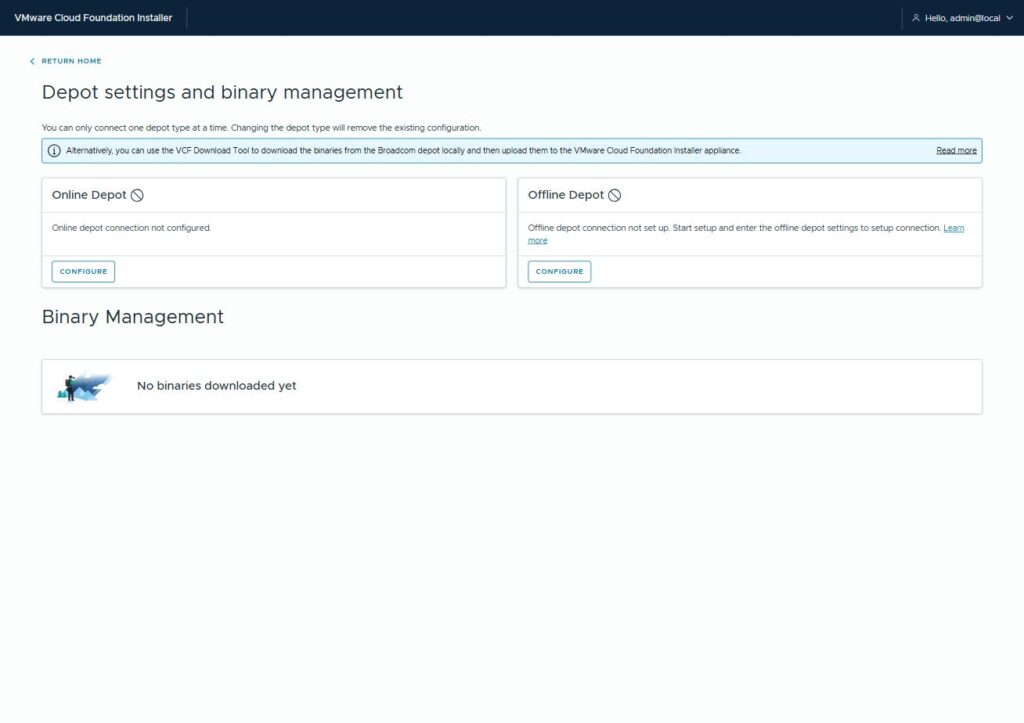
Online or offline, one at a time. Note the banner: if the appliance can’t reach Broadcom at all, the VCF Download Tool lets you pull binaries on a machine that can and upload them. Click CONFIGURE under Online Depot.
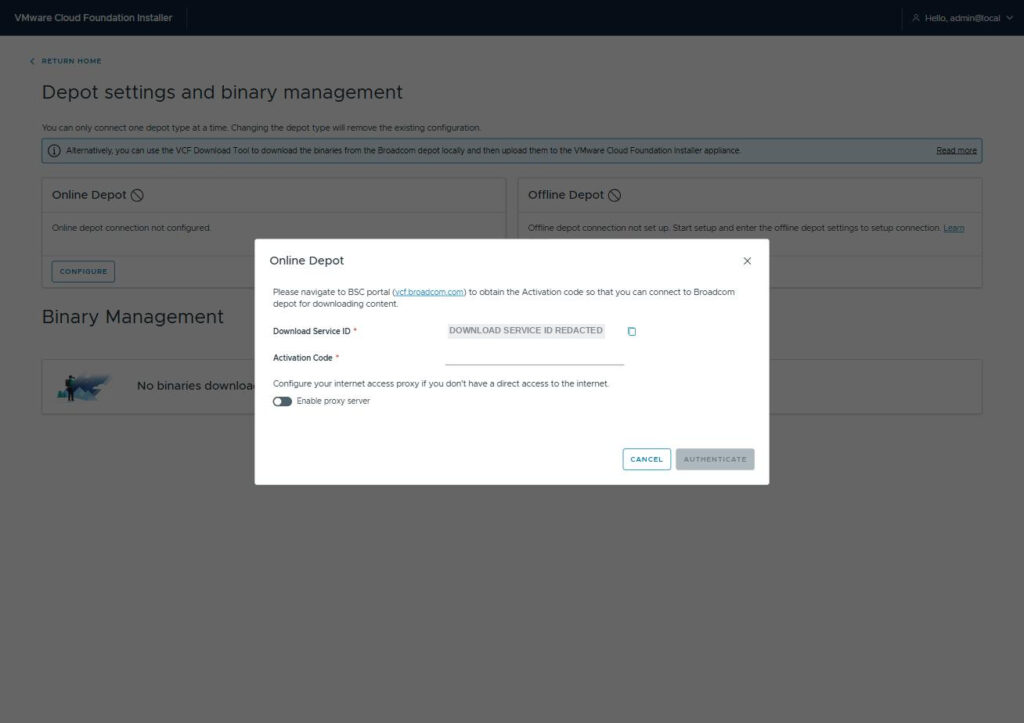
The dialog gives you a Download Service ID and asks for an Activation Code. The ID is generated by this appliance. The code comes from Broadcom’s side, and it’s a short round trip:
- Copy the Download Service ID from the Installer dialog (there’s a copy icon next to it).
- Log into the VCF Business Services console at
vcf.broadcom.comwith your Broadcom Support Portal account. - Go to Software Depot Registration and click to register a new depot.
- Paste the Download Service ID into the Software Depot ID field, give the depot a name you’ll recognise later, and click REGISTER.
- The portal pops a dialog titled Software Depot Successfully Registered with the Activation Code. Copy it now. The dialog tells you plainly: “After you click Finish, you cannot retrieve the code.”
- Back in the Installer, paste the code into the Activation Code field and click AUTHENTICATE.
Treat that code like a credential, not an identifier, because that’s what it is. It’s a base64 JSON blob that embeds a client_id and client_secret for your Broadcom tenant. Don’t paste it into a ticket, don’t leave it in a screenshot, and if you ever do either, deregister the depot in the console and generate a new one.
Authenticate, and:
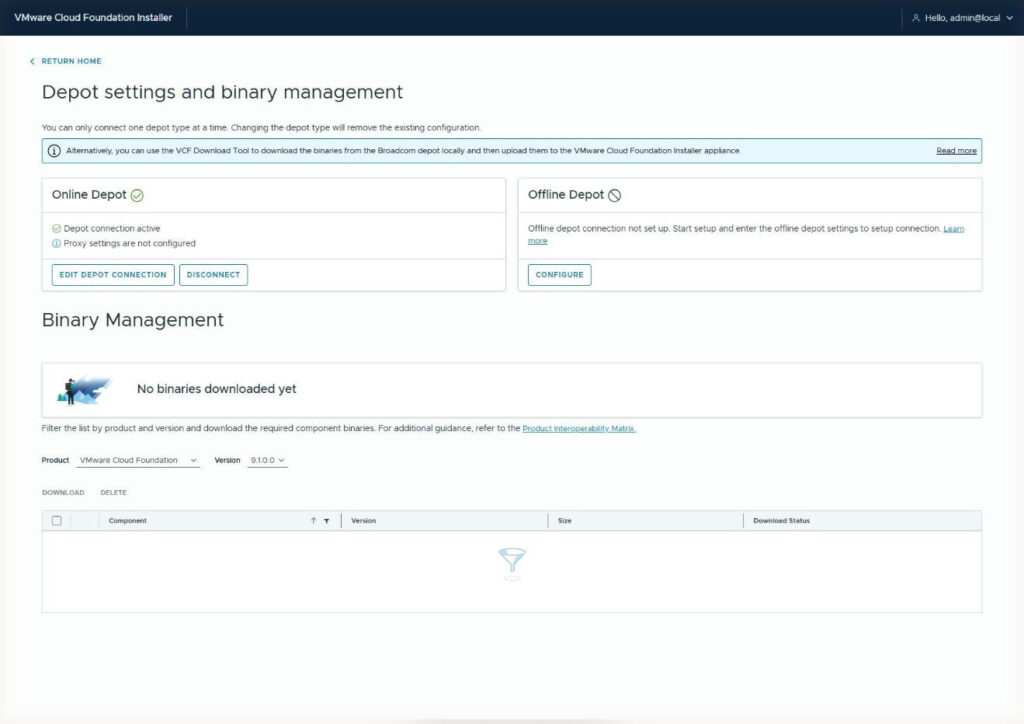
Depot connection active. Proxy not configured, because it didn’t need to be.
Step 4: Download the Binaries
Filter to VMware Cloud Foundation, version 9.1.0.0, and the full component list appears.
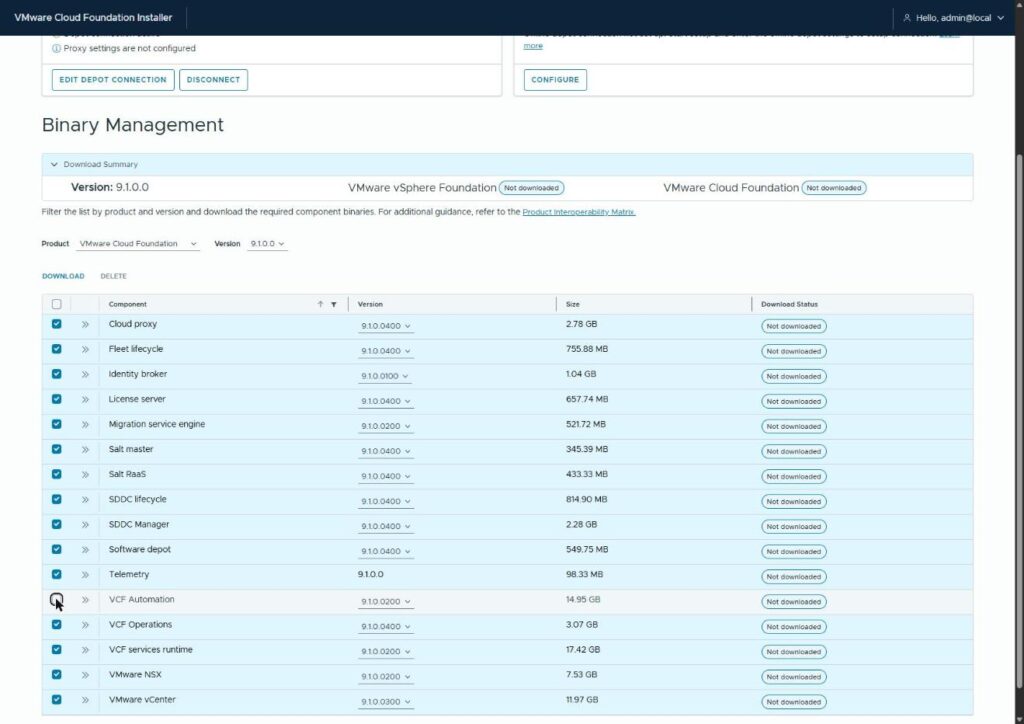
Sixteen components, from a 98 MB telemetry package up to a 17.42 GB VCF services runtime. I selected fifteen of them and deliberately skipped VCF Automation, which is 14.95 GB on its own and which I’m not deploying in this pass. The wizard lets you connect an existing Automation instance or deploy it later, and it’s going to nag you about that choice on every subsequent screen. That’s fine. I’m sure we will meet again VCF Auto…
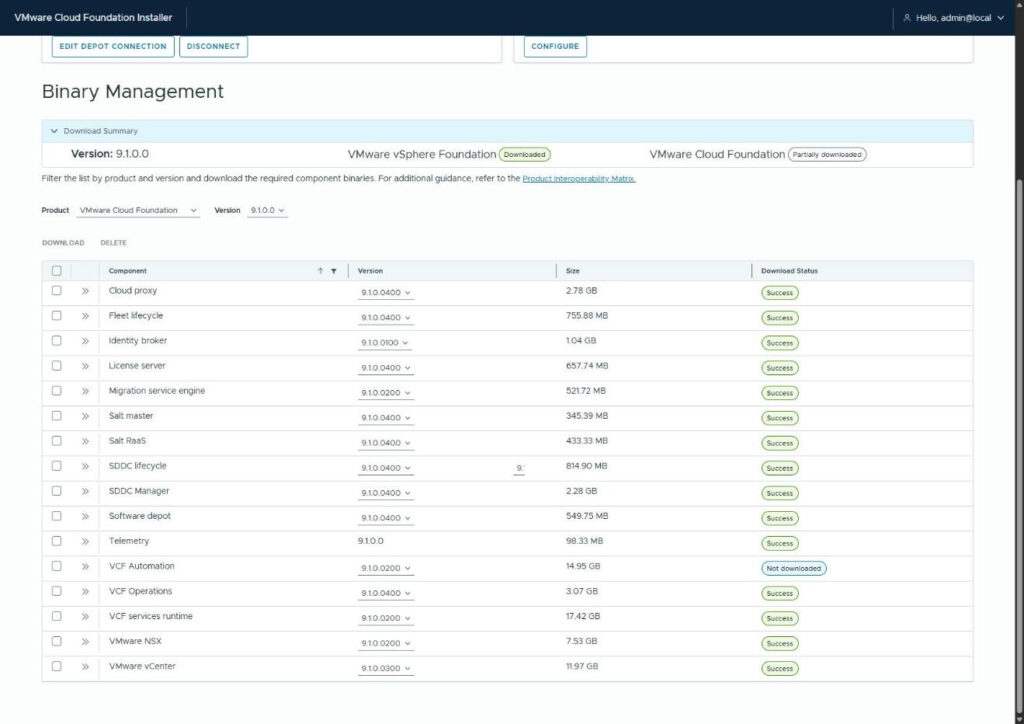
All fifteen at Success. The summary line reads VMware vSphere Foundation (Downloaded) and VMware Cloud Foundation (Partially downloaded), which is accurate and slightly passive-aggressive.
Part Two: Plan
Step 5: Pick Your Path
Back on the landing page, click DEPLOYMENT WIZARD.
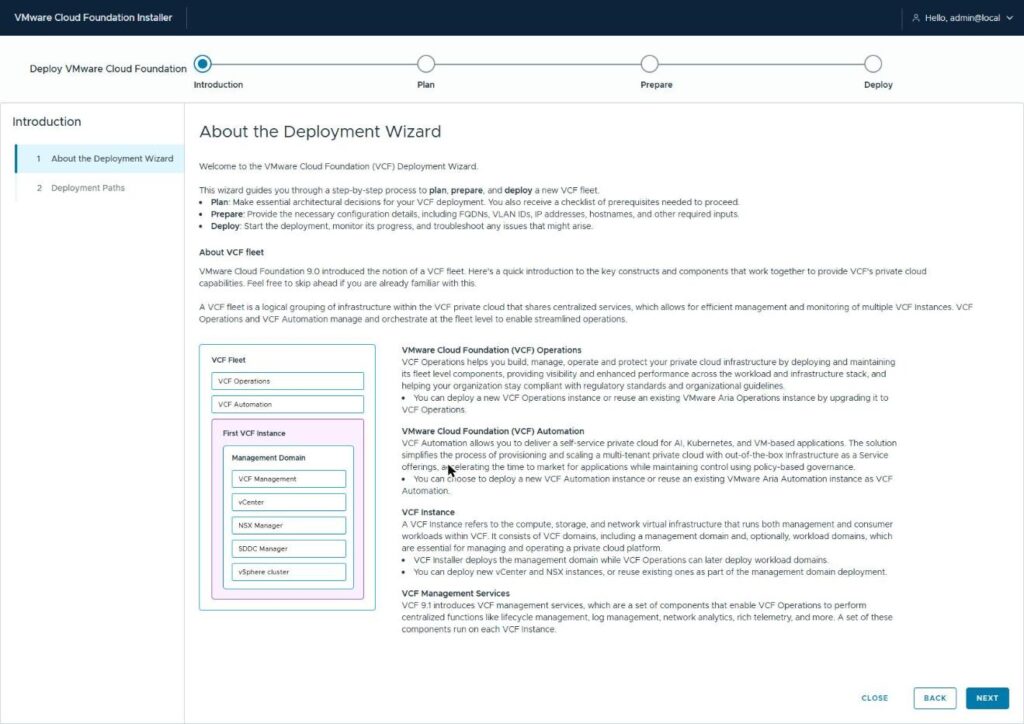
Three phases across the top: Plan, Prepare, Deploy. Plan asks what you’ve got and what you want. Prepare collects the actual values. Deploy validates and runs. Progress is saved in the browser as you go, so you can close it and come back, which I did more than once.
The intro also lays out the fleet model, and it’s worth thirty seconds if 9.x is new to you: a VCF fleet is the top-level thing, it contains VCF Operations and (optionally) VCF Automation, and underneath it sit one or more VCF instances, each with a management domain. We’re building a fleet with one instance.
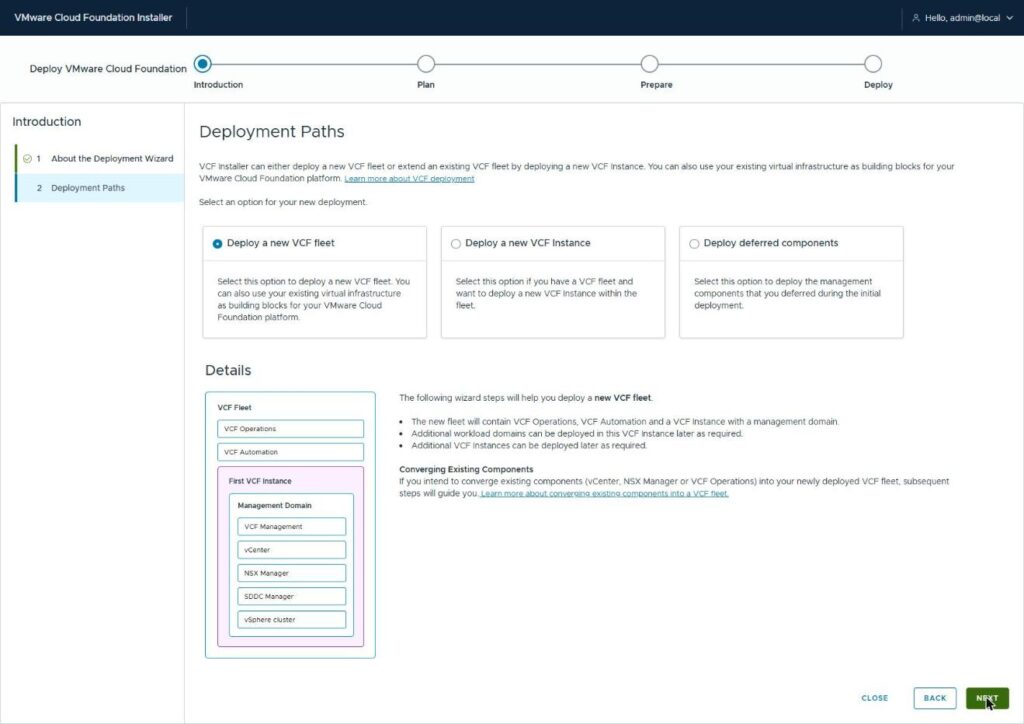
Deploy a new VCF fleet. The other options are adding an instance to an existing fleet, or deploying deferred components later. Note the paragraph at the bottom about converging existing components: that’s us, and the wizard will ask about it next.
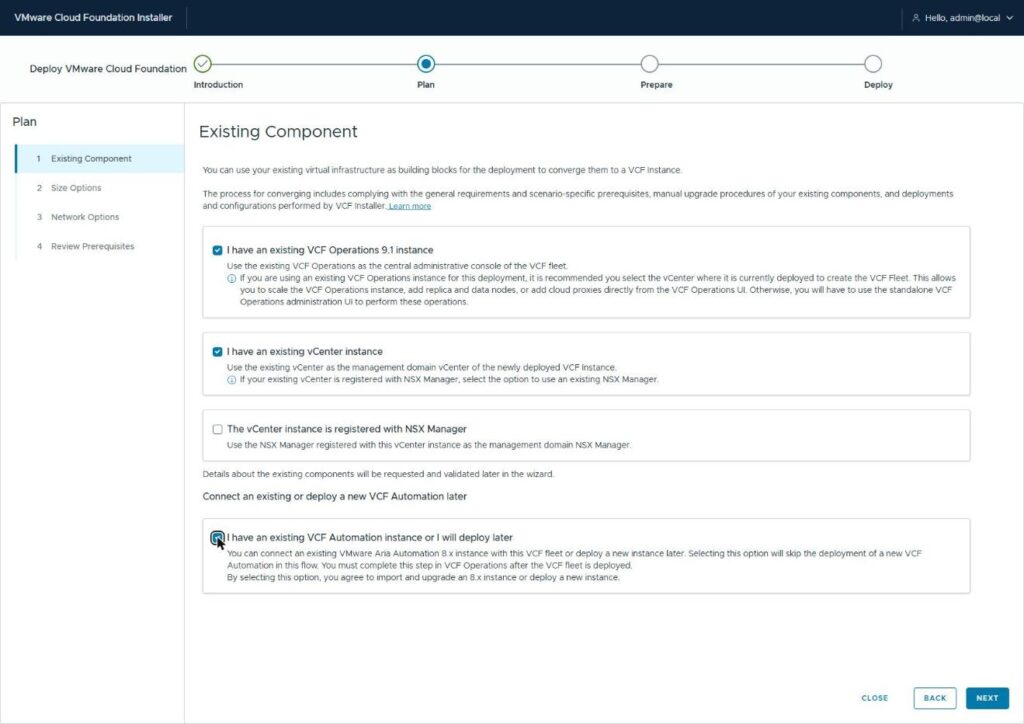
Three boxes ticked: I have an existing VCF Operations 9.1 instance, I have an existing vCenter instance, and I have an existing VCF Automation instance or I will deploy later. The NSX box stays unticked because vc02 has never been registered with an NSX Manager.
Watch the left rail when you tick the vCenter box. The Storage step disappears. Five steps become four, because if you’re bringing your own vCenter you’re bringing your own datastores, and the wizard has nothing to ask about storage. That is true, and it’s also where the single most important consequence of this entire post hides, because the wizard isn’t going to ask you about storage and it absolutely is going to make a decision about it.
Step 6: Size It Honestly
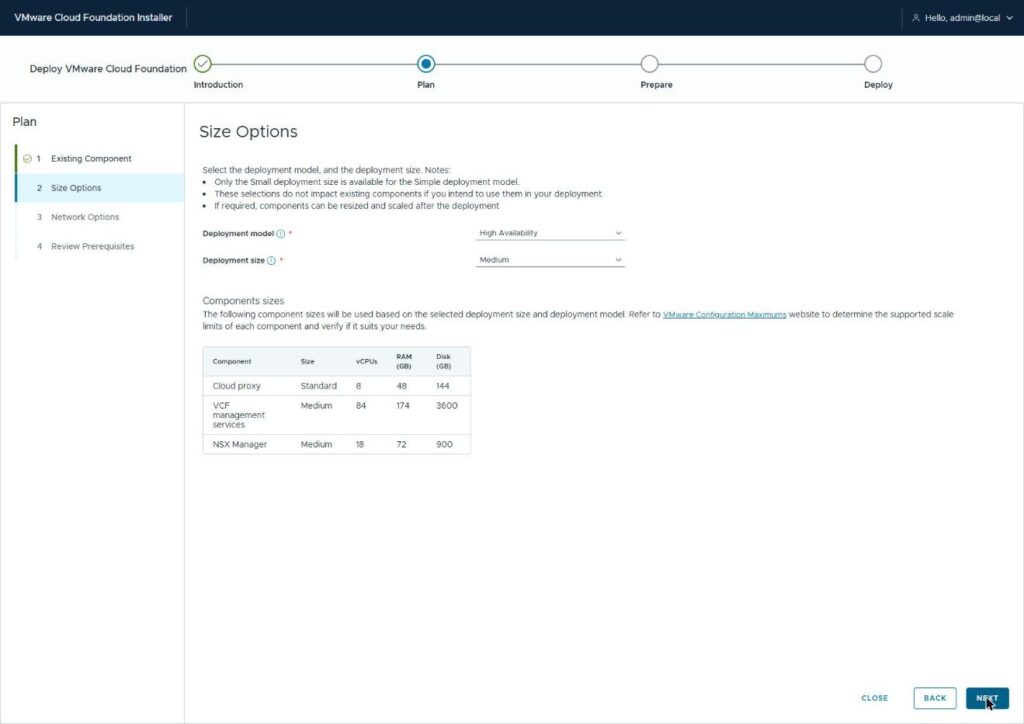
The default is High Availability, Medium. Three NSX Manager nodes, redundancy everywhere. Here’s what that costs:
| Component | Size | vCPUs | RAM (GB) | Disk (GB) |
|---|---|---|---|---|
| Cloud proxy | Standard | 8 | 48 | 144 |
| VCF management services | Medium | 84 | 174 | 3,600 |
| NSX Manager | Medium | 18 | 72 | 900 |
Switch the model to Simple and the size locks to Small:
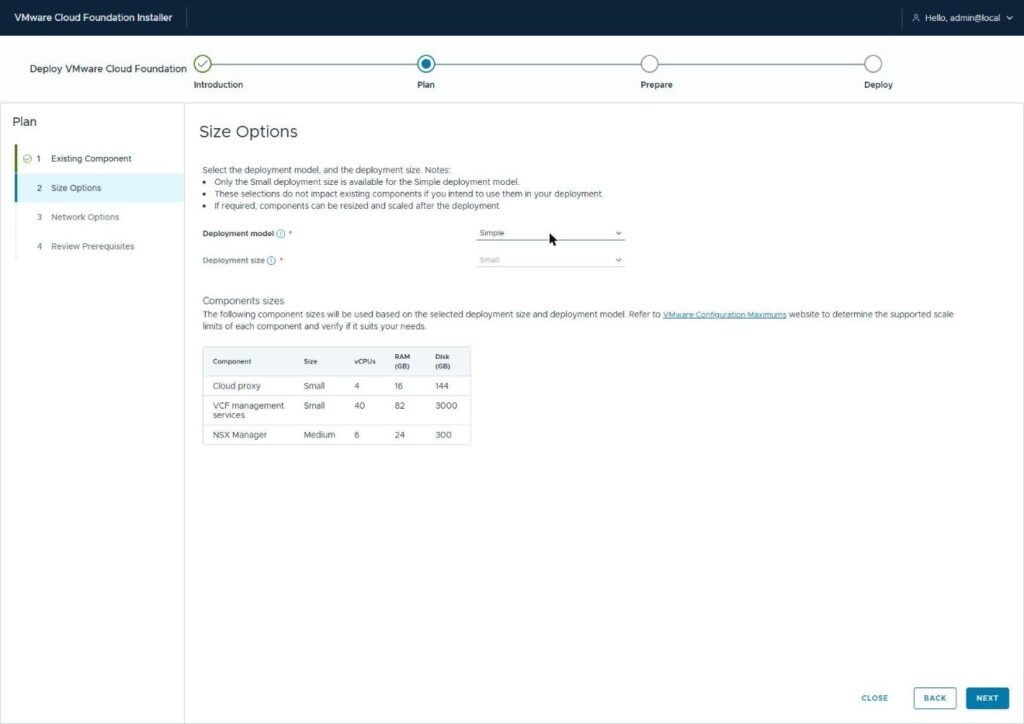
| Component | Size | vCPUs | RAM (GB) | Disk (GB) |
|---|---|---|---|---|
| Cloud proxy | Small | 4 | 16 | 144 |
| VCF management services | Small | 40 | 82 | 3,000 |
| NSX Manager | Medium | 6 | 24 | 300 |
The one I’d point at is NSX Manager: 72 GB down to 24 GB, a 48 GB swing from a single radio button, because Simple means one NSX node instead of three. On a four-host cluster with a terabyte of RAM total and production workloads already on it, that’s not a rounding error.
Simple is a lab-scale decision and I said as much in Part 1. If this were carrying someone’s production I’d be having a hardware conversation before a sizing one. But it’s a legitimate supported model (the docs call for a minimum of 2 ESX hosts with external storage for Simple, and I have four), and it keeps the management plane from eating the cluster it’s supposed to be managing.
Step 7: Network Options (Turn Off the Thing You Don’t Need)
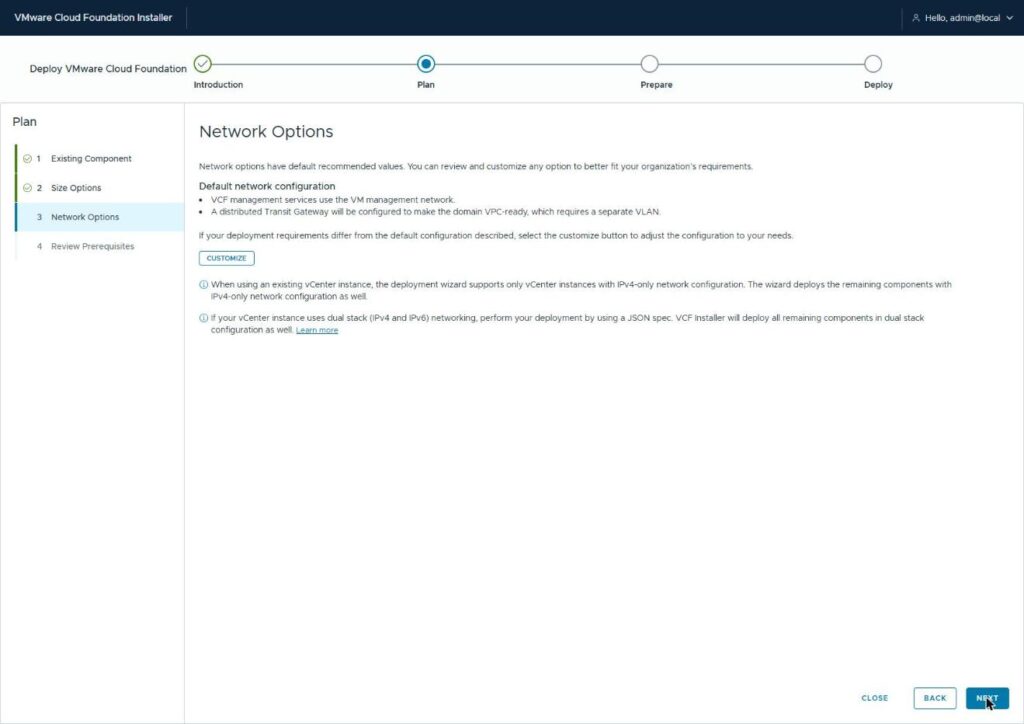
The default network configuration does two things: VCF management services use the VM management network (fine), and a distributed Transit Gateway is configured to make the domain VPC-ready, which requires a separate VLAN (not fine, because I don’t have one and don’t need one).
Click CUSTOMIZE.
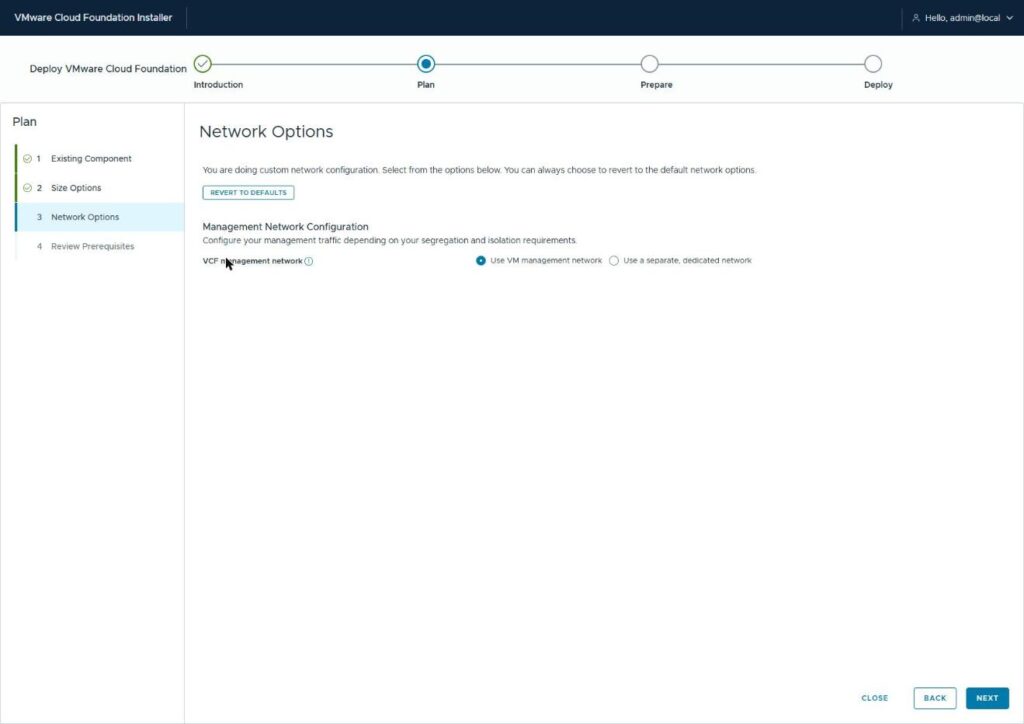
In custom mode the Transit Gateway requirement goes away and you pick where the management network lives. Use VM management network. Everything lands on the network vCenter is already on, and the prerequisites page will shortly confirm “No VLANs will be required.”
If you do want VPC-ready networking out of the gate, keep the default and bring a VLAN. It’s a real feature. It just isn’t one this environment is ready to use, and converge is not the moment to be adding network requirements you didn’t plan for.
Step 8: Review Prerequisites (and Download the Template)
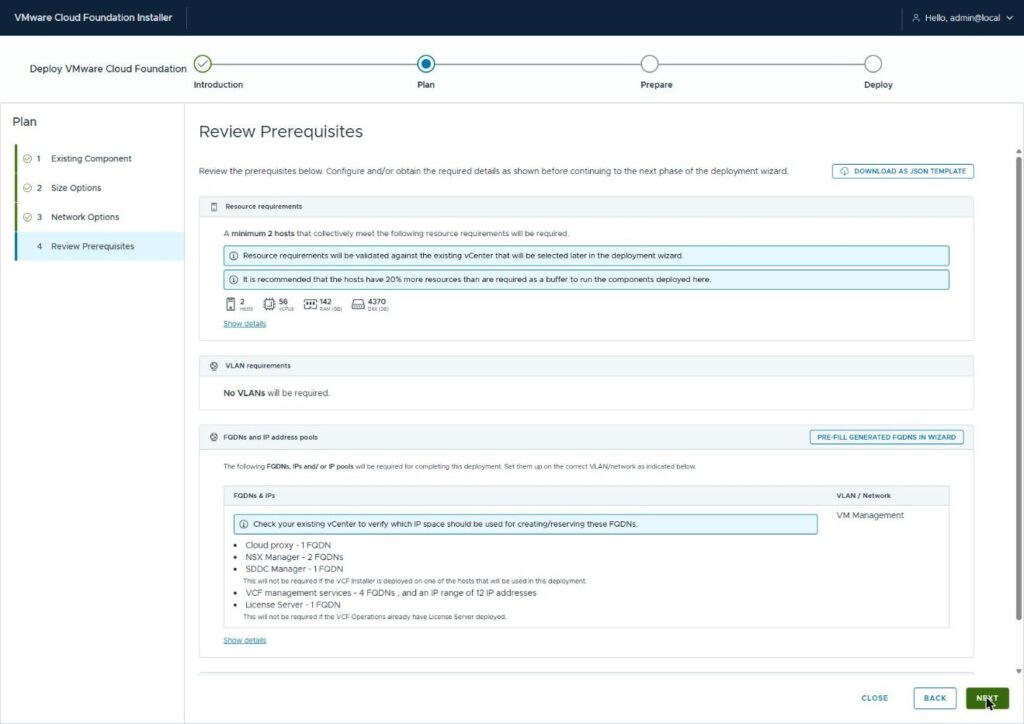
This page is the wizard telling you, in one place, everything it’s about to ask for. Resource requirements (2 hosts, 56 vCPUs, 142 GB RAM, 4,370 GB disk, plus the 20% buffer it recommends), no VLANs, and then the FQDN and IP list.
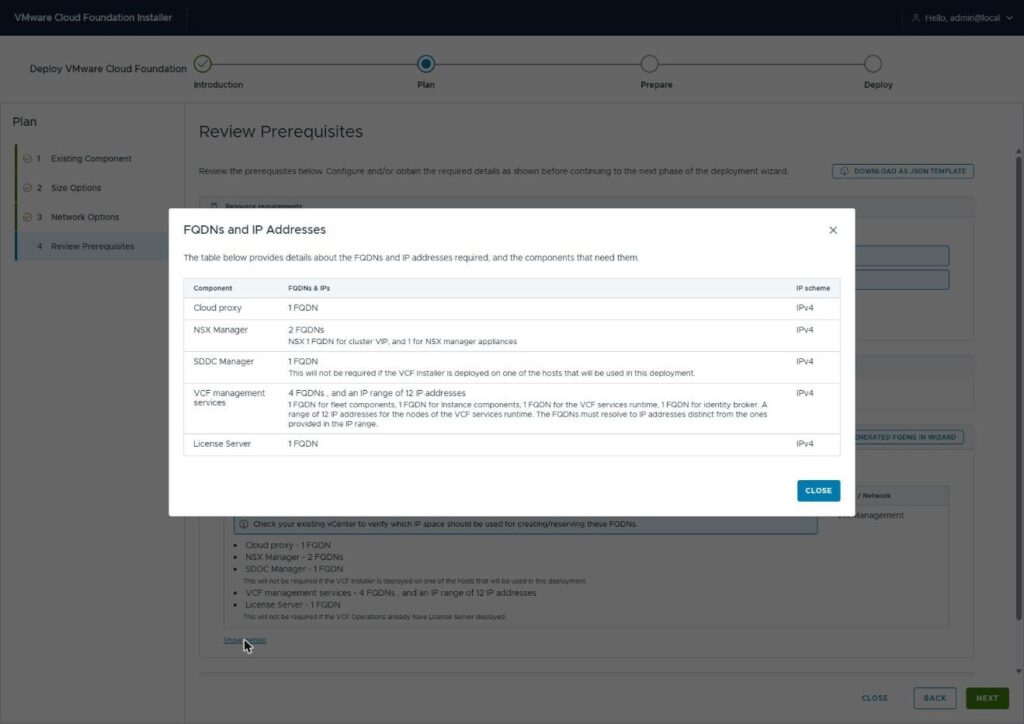
Click Show details and it spells out the VCF management services requirement precisely: four FQDNs (fleet components, instance components, VCF services runtime, Identity Broker) and a range of at least twelve IP addresses for the services runtime nodes, and the FQDNs “must resolve to IP addresses distinct from the ones provided in the IP range.” So sixteen addresses minimum for that one component, and they can’t overlap.
Two buttons worth using. PRE-FILL GENERATED FQDNS IN WIZARD will populate the Prepare phase with suggested names if you haven’t picked your own. And DOWNLOAD AS JSON TEMPLATE gives you the deployment spec as a file, which matters for two reasons: it’s how you’d do anything the UI can’t (dual-stack IPv6, for instance), and it’s a complete record of what you built that you’ll want in six months.
If anything on this page is a surprise, now is cheap. Each step from here gets more expensive to back out of.
Part Three: Prepare
Step 9: General Information
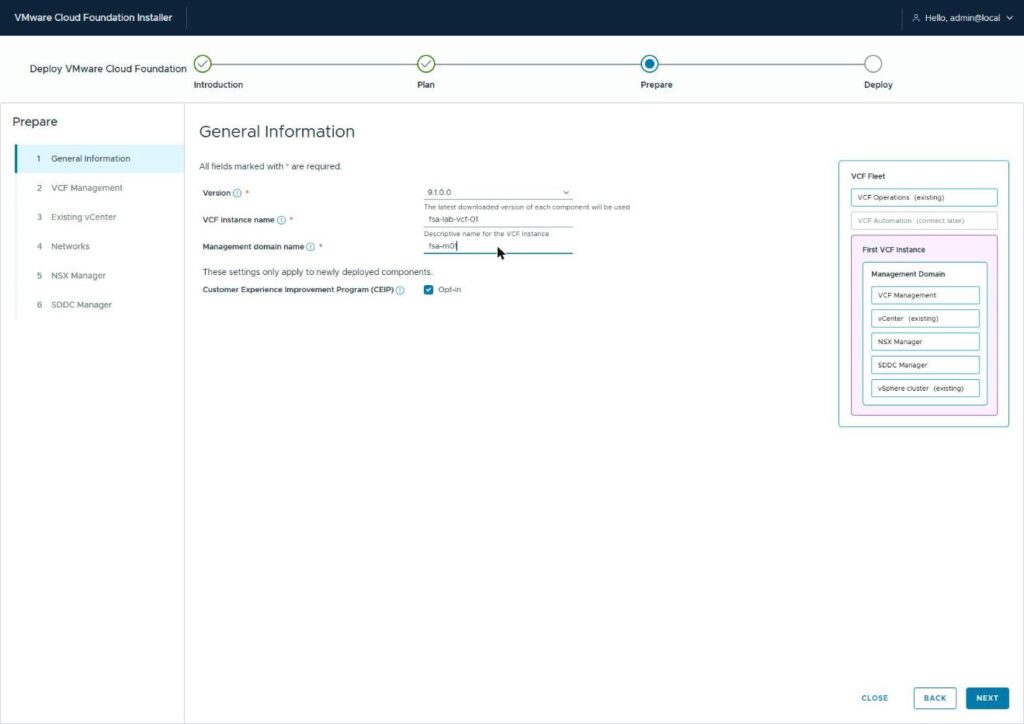
Version 9.1.0.0 (it uses the latest downloaded build of each component). A name for the VCF instance (fsa-lab-vcf-01) and the management domain (fsa-m01). The diagram on the right now tracks what’s existing versus new: VCF Operations existing, VCF Automation to connect later, vCenter existing, NSX Manager and SDDC Manager new.
Step 10: VCF Management (and a Warning That Never Goes Away)
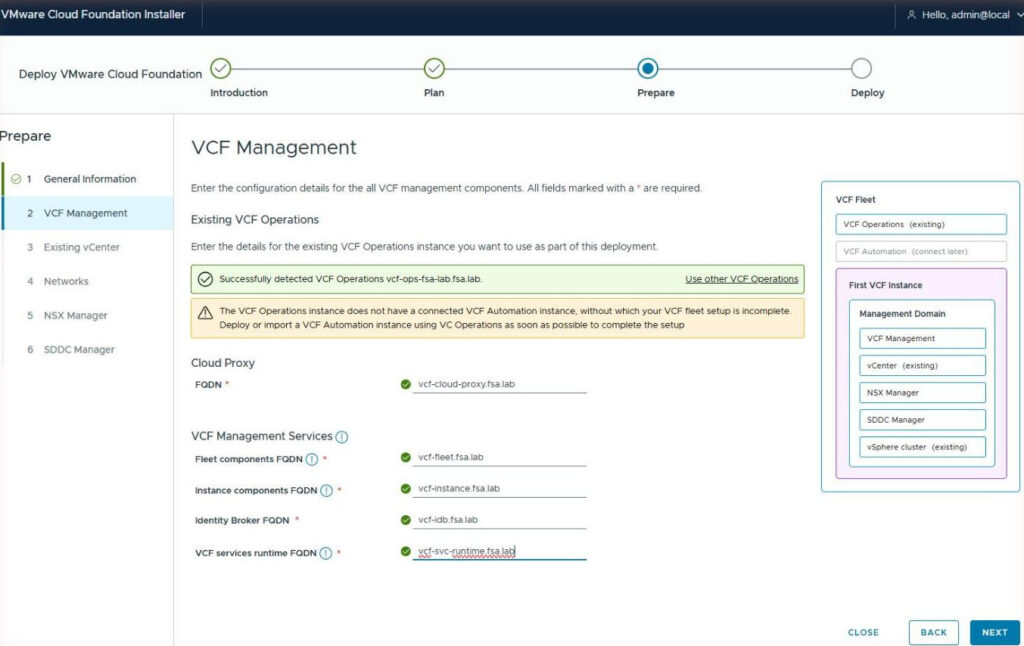
Green banner: Successfully detected VCF Operations vcf-ops-fsa-lab.fsa.lab. That’s Part 1’s appliance being found and adopted. Nothing to configure; the wizard already knows it.
Right underneath it, the amber warning I mentioned: the VCF Operations instance does not have a connected VCF Automation instance, without which your VCF fleet setup is incomplete. This warning appears on this page, on the validation page, and on the final review. It is correct, it is deliberate, and it is not a blocker. Acknowledge it and move on. You’ll deploy Automation when you have a reason to.
Then five FQDNs, each validated against DNS as you type: cloud proxy (vcf-cloud-proxy), fleet components (vcf-fleet), instance components (vcf-instance), Identity Broker (vcf-idb), and the services runtime (vcf-svc-runtime). Green check on each one before you can continue.
Step 11: Existing vCenter, and the Find of the Whole Project
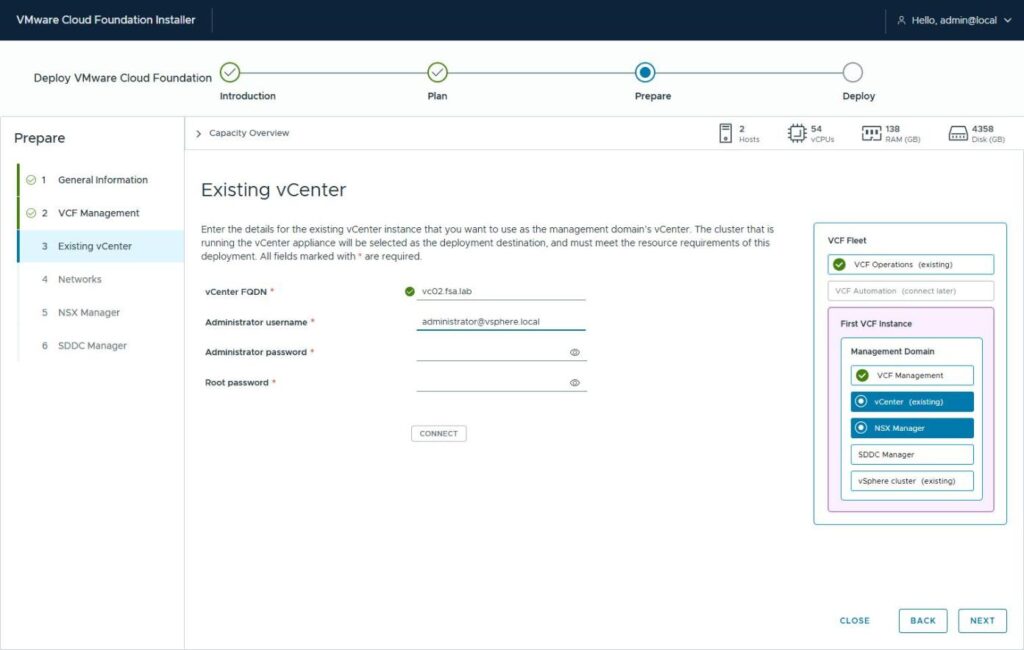
Read the instruction text at the top of this screen carefully, because it is the only warning you are going to get:
The cluster that is running the vCenter appliance will be selected as the deployment destination, and must meet the resource requirements of this deployment.
Enter the vCenter FQDN, the SSO administrator, the admin and root passwords, click CONNECT. And on my first attempt I got a soft, grey, entirely ignorable error:
Failed to obtain available capacity metrics for vCenter Server with address vc02.fsa.lab
vCenter connected fine (green “Successfully detected”). The capacity exists. Nothing said “unsupported.” Nothing blocked. The instinct is to shrug and click NEXT, and I’m fairly sure the wizard would have let me.
Here’s what was actually happening. Remember Step 1 of Part 2, where the vCenter installer asked for “the ESXi host or vCenter that manages the source appliance” and the answer was vc01.fsa.lab? The vc02 appliance VM was running on a cluster managed by a different vCenter. So when the wizard asked vc02 “which of your clusters hosts your own appliance VM,” vc02 couldn’t answer. That VM isn’t in its inventory. The missing capacity metrics weren’t the problem. They were the symptom of an unresolvable deployment destination.
And it turns out this isn’t a preference. Broadcom’s Supported and Not Supported Configurations page settles it in the Compute row:
| Supported | Not Supported |
|---|---|
| Virtual machine of vCenter instance hosted on one of the clusters that is managed by the same instance | vCenter instance VM hosted on a cluster that is managed by a different vCenter instance |
A documented unsupported configuration, surfaced to me as a soft warning about metrics.
Moving the vCenter VM home
Broadcom’s own fix, named in the Supported cell, is vSphere vMotion. Between two vCenters that aren’t linked (and mine weren’t, we dissolved ELM in Part 1) that means Advanced Cross vCenter vMotion. It works. I did something simpler, because the vc02 appliance was already sitting on a shared FlashArray datastore that both environments could see, and I could afford a few minutes of vCenter downtime.
The move, start to finish:
- Power off the vc02 appliance VM from vc01, where it was registered.
- Remove it from vc01’s inventory. Remove from Inventory, not Delete from Disk. The files stay exactly where they are on the shared datastore.
- Log into the ESXi host client on one of the four
cluster-prodhosts (vc02 is down, so you can’t use vCenter for this step). - Browse the shared datastore, find the appliance’s
.vmx, and Register VM on that host. - Power it on.
A few minutes later vc02 comes back up, and because the host it’s now registered on is one of its own, it sees its own appliance in cluster-prod‘s inventory. No storage moved. No data copied. Just a change of which vCenter owns the VM’s registration.
Back in the Installer, one step back in the wizard, reconnect, and:
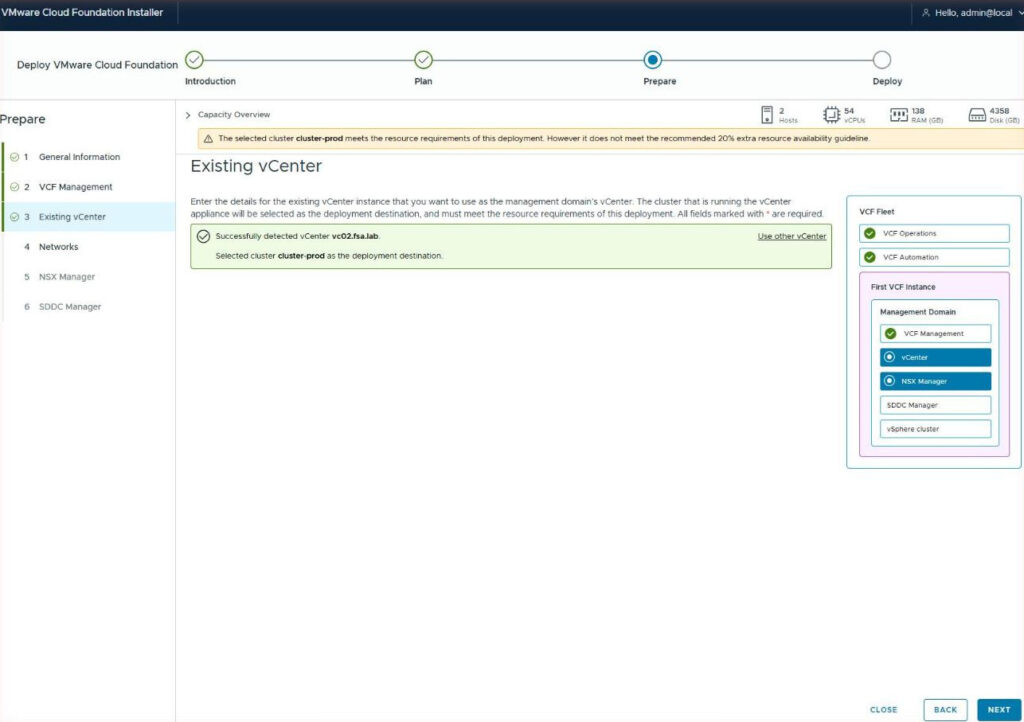
Selected cluster cluster-prod as the deployment destination. Capacity overview populated: 2 hosts, 54 vCPUs, 138 GB RAM, 4,358 GB disk required.
Why this is the find of the project: it was a hard support boundary with no hard signal. If I’d been in a hurry, or if that grey text had been one shade lighter, I’d have deployed a management domain whose own vCenter lived somewhere the domain couldn’t see. I don’t know exactly what breaks downstream from that and I’m glad I didn’t find out.
Check this before you open the wizard. Find your vCenter appliance VM. Look at which vCenter manages the host it’s running on. If the answer isn’t “this one,” move it first, by whichever method suits you, and save yourself the detour.
The 20% warning
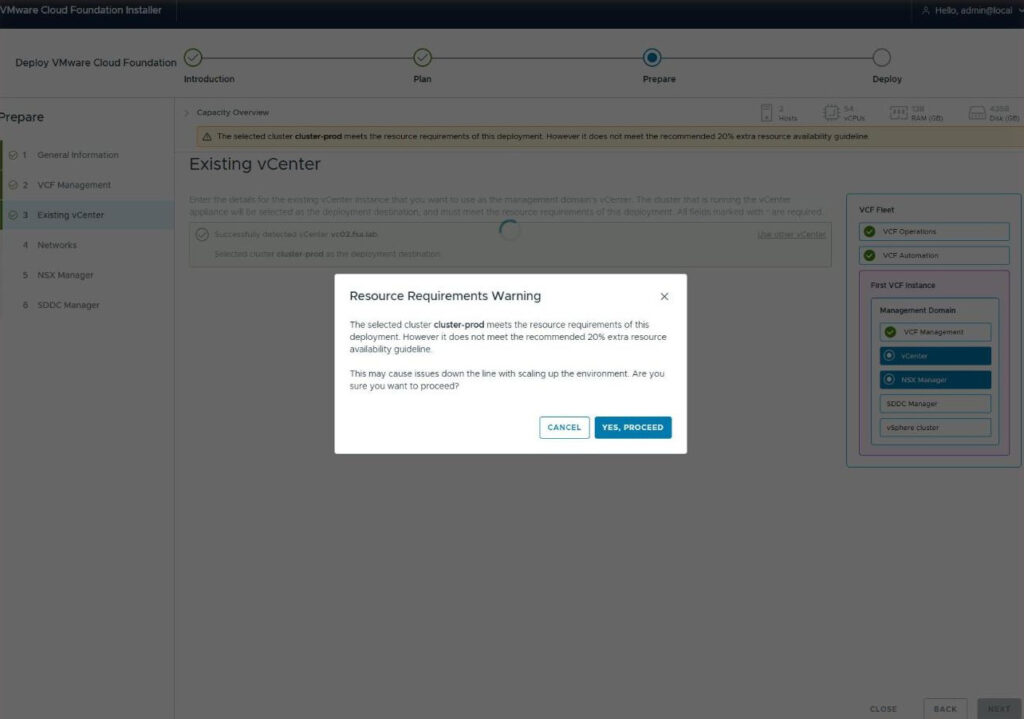
The amber banner, and then a modal to make sure you saw it: cluster-prod meets the resource requirements of this deployment. However it does not meet the recommended 20% extra resource availability guideline. This may cause issues down the line with scaling up the environment.
The docs are explicit that this warns and does not block, and that’s how it behaved. Four hosts with a terabyte of RAM, roughly 524 GB already allocated, Simple sizing on top. There’s room, there isn’t 20% spare room. I clicked YES, PROCEED with eyes open. If you’re sizing this for real, this is the warning to take seriously.
Step 12: The Datastore Decision You Didn’t Know You Were Making
Remember that the wizard dropped the Storage step the moment you said you had an existing vCenter? It still makes a storage decision. It just makes it without asking you. From the same Broadcom page, Storage row:
If you converge a cluster that runs vCenter in an environment with multiple mounted datastores of the same type, the datastore on which the vCenter runs is designated as the principal storage for the cluster.
So whichever datastore the vCenter appliance is sitting on when you click DEPLOY becomes the management domain’s principal storage, the default placement target for everything VCF deploys from here. That is not a VCSA-sized decision. The wizard’s own number for this deployment is 4,358 GB, driven mostly by the VCF management services at 3,000 GB even on Small.
In my case the appliance had lived on a VMFS datastore on the FlashArray since before any of this started, and I left it there through the move in Step 11. That turned out to be a fine choice, but I want to be honest that it was a choice I made by default rather than on purpose. If I were doing this again, I’d look at the vCenter VM’s datastore before starting the wizard and ask whether I’d pick it as the landing zone for four terabytes of management services. If not, that’s the moment to Storage vMotion it somewhere better.
Two more things from that row worth knowing:
There’s a type priority when a cluster has multiple datastore types mounted: vSAN, then NFS v3, then VMFS, then NFS 4.1, then iSCSI, then vVols, with a footnote that vVols is deprecated in version 9 and using it is not recommended. This lab has vVol datastores mounted alongside the VMFS ones, so the priority list isn’t academic.
The datastore must be shared across all hosts in the cluster, accessible from all of them, and writable by all of them. Obvious once you say it, and exactly the property that made the cold move in Step 11 possible.
If you’re converging via JSON rather than the wizard, existingDatastoreName in the spec overrides the priority and lets you decouple “where vCenter happens to live” from “what principal storage should be.” The wizard doesn’t expose that. So in the UI path, wherever the vCenter VM lives is the storage decision. Make it on purpose.
Correction I owe you. My first instinct was to set the vCenter VM to partially automated DRS during converge so it wouldn’t get migrated mid-deployment. Don’t. The same table lists “Clusters using manual or partially automated vSphere DRS” under Not Supported. A per-VM override isn’t technically the cluster setting, but it’s grey enough that I wouldn’t risk it. Leave DRS fully automated and let it do its job.
Step 13: Networks, and the IP Pool That Didn’t Fit My Plan
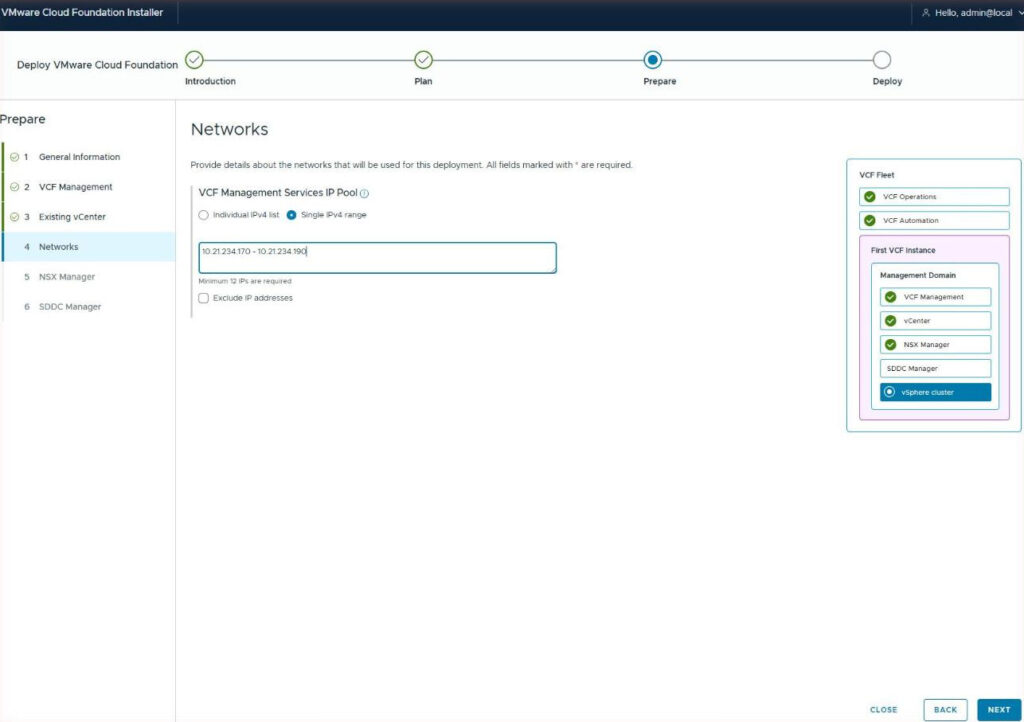
The VCF Management Services IP Pool. Minimum twelve, and William Lam’s writeup puts the ceiling at thirty to leave room for scale-out. Two input modes: an individual list, or a single range.
My plan document had been written as if the wizard took “IP ranges,” plural. It had two carefully audited ranges, .183-.190 and .193-.200, chosen to skirt around two addresses (.191 and .192) that still had live DNS records. Neither range clears twelve on its own, and the UI wants one contiguous start and end. So the plan didn’t fit the screen.
Two ways out. The Exclude IP addresses checkbox is right there on the page, so you can enter a wider range and carve addresses out of it, which is exactly what the two-range plan was trying to achieve. Or you can do what I did and pick a different range altogether: 10.21.234.170 to .190, twenty-one addresses, comfortably over twelve, stopping right before the two I needed to avoid.
The lesson isn’t about my addresses. It’s that the IP plan has to be written against the input the wizard actually has. A plan with two ranges and a list of exclusions is a fine plan for a JSON spec and an impossible plan for a text box that wants start - end.
Step 14: NSX Manager, and the MTU Question
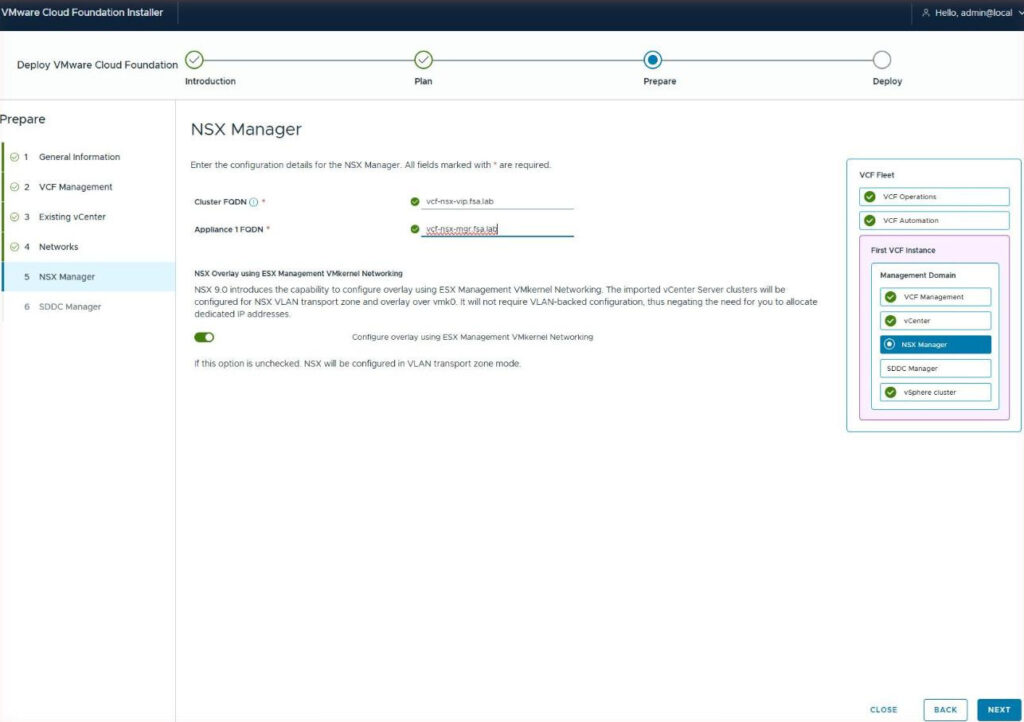
Two FQDNs, both green: vcf-nsx-vip for the cluster VIP and vcf-nsx-mgr for the single appliance (Simple model, remember).
Then a toggle that’s worth slowing down for: Configure overlay using ESX Management VMkernel Networking. New in NSX 9.0. On, it prepares the imported clusters for an NSX overlay transport zone riding over vmk0. Off, NSX is configured in VLAN transport zone mode only. The screenshot shows it in its default position, which is on.
I turned it off, and here’s the reasoning.
Geneve overlay needs headroom in the MTU: 1,600 minimum, 1,700 recommended, 9,000 ideal. My distributed switch runs at 9,000, but vmk0 on these hosts is at 1,500. Overlay over vmk0 at 1,500 is going to fragment or fail, and fixing it means touching the management VMkernel MTU on four production hosts mid-converge, which is the wrong time to be doing that.
More to the point, I have no intention of using NSX overlay networking in this environment today. VLAN transport zone mode gives me an NSX Manager that exists, is managed by SDDC Manager, and is ready. If I want overlay later, I can prepare the hosts for it then, with the MTU done properly and on my schedule. Converge isn’t the moment to take on a network design decision I haven’t planned for.
If your vmk0 is already at 1,700 or better and you want overlay from day one, leave it on. Just know what it’s asking of your management network.
Part Four: Deploy
Step 15: Validate (and Turn On SSH)
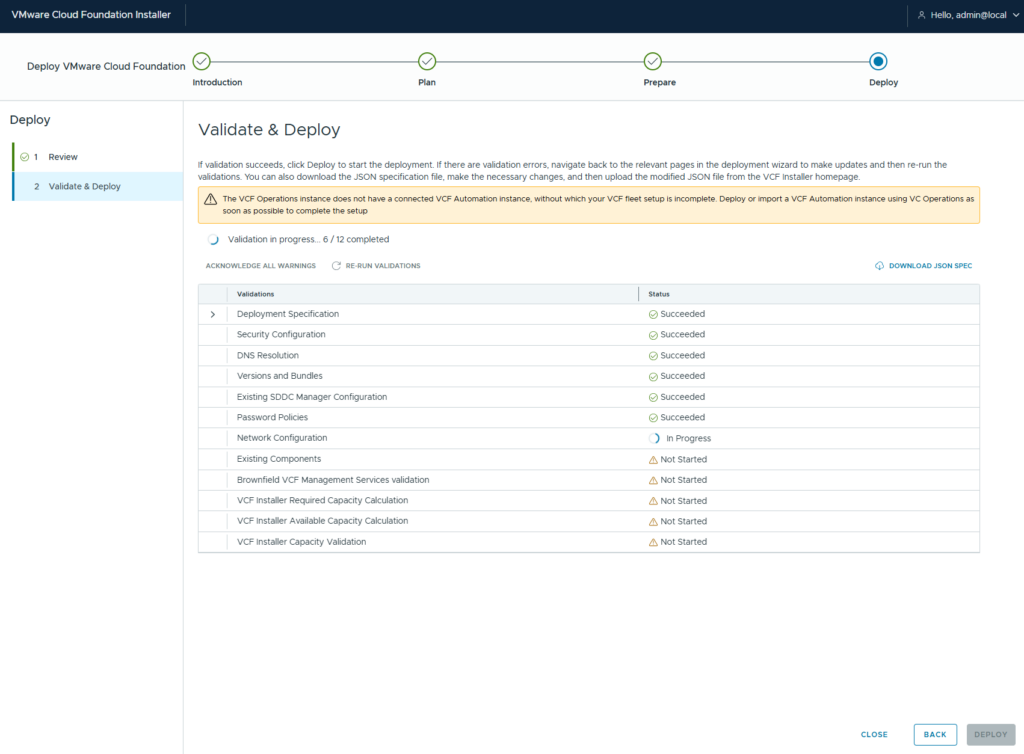
Twelve validations: deployment spec, security configuration, DNS resolution, versions and bundles, existing SDDC Manager configuration, password policies, network configuration, existing components, brownfield management services, and three capacity checks.
Mine failed on the first run. The failing check didn’t say why in terms I could act on, and nothing on the page said “SSH.” But vCenter 9.x ships with SSH disabled, and the Installer needs it to validate an existing vCenter. Enable it from the VAMI at https://vc02.fsa.lab:5480 under Access, or from the DCUI, then click RE-RUN VALIDATIONS.
That button is worth more than it looks. You don’t lose the wizard, you don’t lose the spec. Fix the condition outside the Installer, re-run, carry on. Same pattern as the NTP check in Part 1 and the stale key: the tooling validates properly and tells you it failed, it just doesn’t always tell you why in a form you can act on.
Open question I haven’t resolved: whether to turn SSH back off afterward. SDDC Manager uses SSH to appliances for some lifecycle operations, so re-disabling it may break things later. I’ve left it on pending a read of the hardening guide. Don’t assume either way.
Step 16: The Last Two Warnings
With validation clean, two warnings remained before DEPLOY lit up.
The first was about image compliance on the cluster, which I’d already confirmed green in Part 2. Acknowledge.
The second, verbatim:
Disable HAC upgrade policy configured for cluster cluster-prod on vCenter does not match default SDDC Manager ESXi upgrade policy. It has value true in vCenter, and default value false in SDDC Manager.
HAC is HA Admission Control, and the acronym isn’t expanded anywhere on screen. This is the remediation setting from Part 2, Step 9, coming back exactly as promised. vLCM disables admission control so a host can always enter maintenance mode. SDDC Manager’s default is the opposite. Two lifecycle systems with opposite opinions about who makes room during host upgrades, and once SDDC Manager owns lifecycle after converge, its default wins.
It isn’t resolved here. You acknowledge it, and then after converge you set the policy you actually want on the Upgrade Options page during an ESX update. My decision: admission control stays disabled. Four hosts, roughly 244 GB spare across three if one fails, and the alternative (admission control on, SDDC Manager refusing to auto-disable it) is the more annoying failure mode on a cluster this size.
Worth being honest about the trade, though. After converge this cluster hosts NSX Manager, SDDC Manager and the management services. Without admission control, a host failure means HA restarts the control plane on a best-effort basis rather than a guaranteed one. On four hosts I’ll take that. On more I’d think harder.
Step 17: Deploy
Click DEPLOY and go do something else for a while.
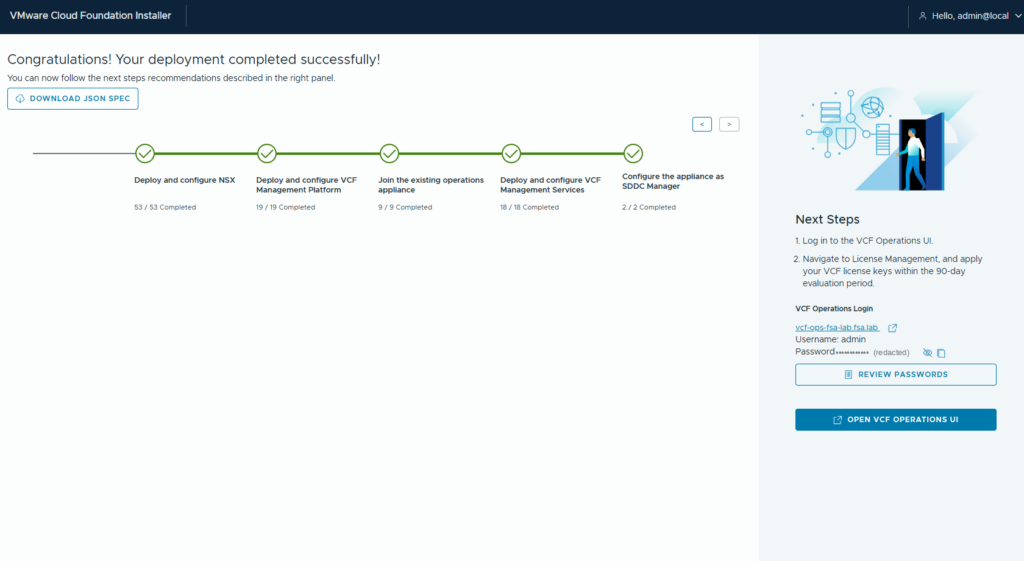
Five stages, 101 tasks, zero failures:
| Stage | Tasks |
|---|---|
| Deploy and configure NSX | 53 / 53 |
| Deploy and configure VCF Management Platform | 19 / 19 |
| Join the existing operations appliance | 9 / 9 |
| Deploy and configure VCF Management Services | 18 / 18 |
| Configure the appliance as SDDC Manager | 2 / 2 |
Two of those names are worth reading twice. “Join the existing operations appliance” is converge in the literal sense, the VCF Operations instance from Part 1 being adopted rather than replaced. And “Configure the appliance as SDDC Manager” is the Installer converting itself, which is why the 16 GB is permanent.
Then, before you close anything, click REVIEW PASSWORDS. VCF 9.1 auto-generates appliance credentials rather than using what you typed at OVA deploy, and the final screen is where they live. Capture them into your password manager now. If you close this page without doing it, KB 388719 covers retrieving them, but it’s a worse afternoon than clicking one button.
And a note on that Next Steps panel, which tells you to “apply your VCF license keys within the 90-day evaluation period.” That’s boilerplate. Licensing was done in Part 1 and vc02 is carrying 64 of 128 cores. It is still worth going into License Management afterward and confirming that the new NSX Manager and SDDC Manager inherited that licensing rather than landing in evaluation, because the panel isn’t going to tell you either way.
The Post-Converge Punch List
Things I either did afterward or still owe this environment, in rough priority order:
- Confirm licensing on the new components. NSX Manager and SDDC Manager should show against the 128-core pool, not Evaluation.
- Set the HAC upgrade policy in Upgrade Options on the first ESX update, so SDDC Manager and your actual intent agree.
- Decide on SSH on vCenter. Left on for now; check the hardening guide before turning it off.
- Password management for imported ESX hosts doesn’t work out of the box. VCF Operations can’t rotate root on hosts that came in through converge until you add their credentials to SDDC Manager. KB 388859 has the workaround.
- Know your new upgrade floor. After converge, the docs say you can only move the fleet to a VCF version released after the earliest existing component you brought in. The back-in-time rule from Part 2 follows you into the fleet. Check the Interop Matrix before planning the next hop.
- Validation sweep: vMotion between every host pair, every datastore visible on every host, the Pure Storage plugin and Intersight Assist still registered and healthy.
- Identity. The Identity Broker is deployed and SSO scope is configured from VCF Operations (Fleet Management, Identity & Access). Wiring it to Active Directory is its own exercise and not covered here.
- VCF Automation, when there’s a reason to.
Wrap Up
Seven phases, three posts, one management domain. vCenter 9.1, four hosts on 9.1, NSX Manager and SDDC Manager deployed around them, VCF Operations adopted, 101 tasks clean.
Three things from this one, and they’re the three I’d write on the whiteboard before anyone else here does a converge.
The vCenter VM has to live on a cluster it manages, and nothing will stop you if it doesn’t. A soft warning about capacity metrics was the only signal of a documented unsupported configuration. Check it before you open the wizard: find the vCenter appliance VM, look at which vCenter manages the host it’s on, and if the answer isn’t “this one,” move it first. On shared storage that’s a power-off, an unregister, and a re-register on the right host.
Wherever the vCenter VM lives is the storage decision. The datastore it’s on when you deploy becomes principal storage for the management domain. Look at it like it’s a 4 TB decision, because it is, and don’t let it be a vVol.
Write the IP plan against the input the wizard actually has. One range, twelve minimum, exclusions if you need them. A plan that’s correct for a JSON spec can be unenterable in a text box.
And one that’s about the series more than the step: of everything that went wrong across these three posts, almost none of it was hard. A DNS field that didn’t parse. A key that went stale. A vendor addon pinned to the wrong base image. A VM on the wrong cluster. Each one took longer to notice than to fix, and every one of them came with a message that pointed somewhere other than the cause. The skill this upgrade asked for was less about VCF than about reading error messages slowly and fixing the confirmed thing before the predicted one.
The drums have stopped. Not because anyone turned them off, but because the thing they were announcing has arrived and the wall held. There’s a management domain where there used to be a vCenter, and a year of runway before anyone has to think about October 2027 again.
Look east. It’s getting light.
Like everything in this space, some of these screens will have moved by the time you read this and at least one build number has already rolled. Did your converge fork somewhere mine didn’t? Find me on LinkedIn and let’s compare notes.
References:
- Converging Existing Virtual Infrastructure to a VCF or vSphere Foundation Platform
- Supported and Not Supported Configurations to Converge to VCF
- Deploy Components by Using VCF Installer to Complete the Converging to VCF Process
- Migrating Virtual Machines Between vCenter Systems (cross-vCenter vMotion)
- Add Missing ESXi Root Credentials into SDDC Manager (KB 388859)
- VMware Product Interoperability Matrix
- William Lam: VCF 9.1 Additional IP Allocation Options for VCF Management Services (VCFMS) in VCF Installer and SDDC Manager
- William Lam: Auditing VCFMS IP Pool Usage with the VCF Fleet LCM APIs