
Where we left off
Last time we built the licensing control plane: VCF Operations deployed and collecting, License Server registered, 128 cores of entitlement pulled down from Broadcom. And then we hit a wall, because none of that entitlement could actually be assigned to anything. The vCenter Systems table only lists 9.x instances, and vCenter was still sitting on 8.0 U3e.
So that’s the job today. vCenter first, then the four hosts, and somewhere in the middle vc02 finally shows up to collect its 64 cores.
This is the part of the siege where you stop preparing and start getting rained on. It’s also the stretch most vSphere admins already know, because the tools are familiar: the vCenter installer and vLCM, doing what they’ve always done. But it’s still worth walking through, because there are a few spots to watch for along the way, and the wrong build number here costs you a weekend.
Which is a good place to start.
Before you touch anything: check the back-in-time table
Here’s a sentence that sounds wrong: you can be too patched to upgrade.
VCF enforces what Broadcom calls a back-in-time restriction. It refuses to move a component to a build that is chronologically older than the one you’re running, even when the target is a higher major version. The logic is sound once you see it: 9.1.0’s bill of materials was finalized at a point in time, and if your 8.0 U3 install has picked up security fixes released after that point, upgrading would silently roll them back. So it blocks.
When I did this work, that meant a hard line through the 8.0 U3 train:
| vSphere 8.0 U3 build | Upgrade / Converge to VCF 9.1.0 |
|---|---|
| 8.0 U3 through 8.0 U3i | Supported |
| 8.0 U3j (vCenter 25413364 / ESXi 25429389) and later | Not supported |
| 8.0 U3k | Not supported |
I was on 8.0 U3e, comfortably inside the window, so this never bit me. It nearly did anyway, and here’s how.
When I went to pick a base image for the cluster, the depot cheerfully offered me this:
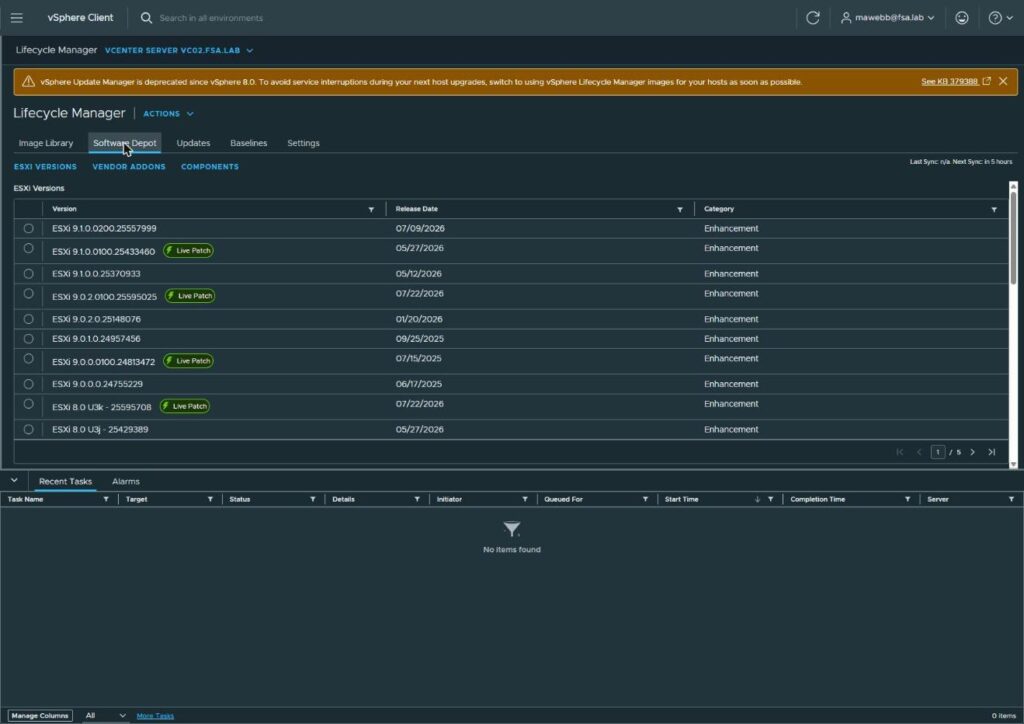
Look at the bottom two rows. ESXi 8.0 U3k - 25595708 and ESXi 8.0 U3j - 25429389, sitting three rows below the 9.1 build I actually wanted, in the same list, with no warning of any kind. That second build number is literally the one named in the restriction. vLCM will let you select a build that VCF will later refuse to converge. The depot and the lifecycle rules are not the same system, and they do not consult each other.
If you’d clicked U3k that day thinking “newest is safest,” you’d have patched yourself straight out of your own upgrade path, and you wouldn’t find out until converge pre-checks went grey on you with this:
Cannot upgrade to VCF version 9.1.0.0 for domain [Domain-ID] in a compatible way.
Now the part that will date this post, and I’d rather say it than have you find out: VCF 9.1.1 shipped on 3 September 2026 with a bill of materials newer than the restriction baseline, and per KB 448135 that resolves the block. 8.0 U3j and U3k have a supported path to 9.1.1. So if you’re reading this and targeting 9.1.1 or later, the specific trap above is already closed.
What’s the takeaway? Don’t take a build number from a depot dropdown or from a blog post, including this one. Check it. Broadcom publishes an upgrade planner tool now, and the Product Interoperability Matrix will answer it directly, as long as you remember to untick Hide Patch Releases, because the whole problem lives in the patch releases.
Tip: this cuts both ways with security patching. If a critical CVE drops mid-project you may face a genuine choice between patching now and keeping your upgrade path open. That’s a conversation to have with whoever owns risk, not a decision to make quietly in a maintenance window. Broadcom’s general guidance has been to apply the patch unless you have an active, planned migration.
What You’ll Need
- The vCenter 9.1 ISO. Mine was
VMware-VCSA-all-9.1.0.0300.25629530.iso. - A spare IP on the management network for the new appliance. The upgrade is side-by-side, not in-place, and it needs somewhere to stand while it copies.
- A backup, and a snapshot if you can. This phase has a real rollback requirement. I used a Purity snapshot of the datastore and a file-based vCenter backup to FTP.
- A maintenance window with room in it. Budget two to three hours for vCenter alone, and plan the host remediation separately.
- Your cluster already on vLCM images, not baselines. If you skipped that in prep, stop here and go do it, because you cannot upgrade to ESX 9 on a baseline-managed cluster.
- Credentials for the vCenter that manages your VCSA’s VM, which may not be the vCenter you’re upgrading. More on that in a second.
Part One: vCenter
Step 1: Stage 1, Connect to Source
The installer is the familiar two-stage workflow and the ISO still ships the UI installer. Stage 1 deploys a brand new appliance next to the old one. Stage 2 moves everything across.
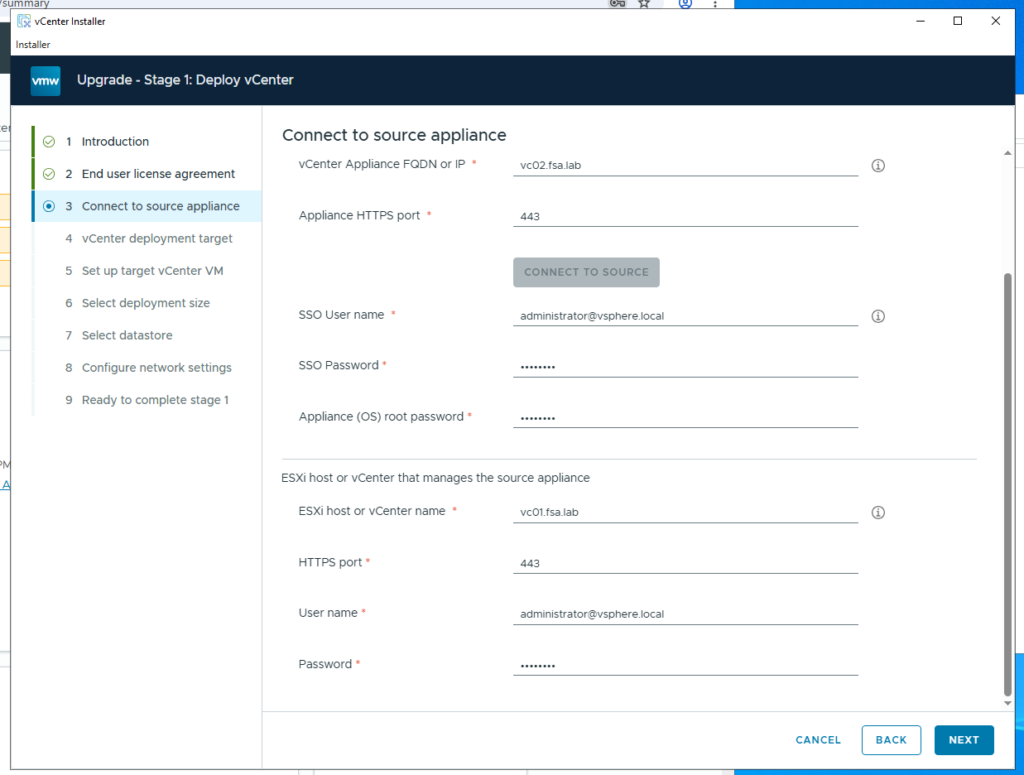
Nine steps in the left rail, and step 3 is where the environment-specific wrinkle lives.
The top half of that form is the appliance you’re upgrading: vc02.fsa.lab, port 443, SSO credentials, and the appliance OS root password. Straightforward.
The bottom half asks for “ESXi host or vCenter that manages the source appliance.” In my environment that is vc01.fsa.lab, which is a different vCenter entirely. The vc02 appliance VM lives on infrastructure managed by vc01.
That’s a perfectly normal thing for a lab to have grown into, and the installer takes it without complaint. Park that detail somewhere. It’s something I have to resolve in Part 3, where it comes back around as a documented unsupported configuration for converge. The vCenter upgrade does not care. Converge does.
Step 2: Stage 1 Runs
Steps 4 through 9 are deployment target, VM name, deployment size, datastore, and network settings. Nothing surprising in there, and the one field worth planning in advance is the temporary IP.
This is where the spare address goes. My upgrade plan had earmarked .129; the address I actually ended up using was 10.21.234.147. It worked fine, but it’s the sort of mismatch that confuses whoever reads your runbook next, so write down the one you really used.
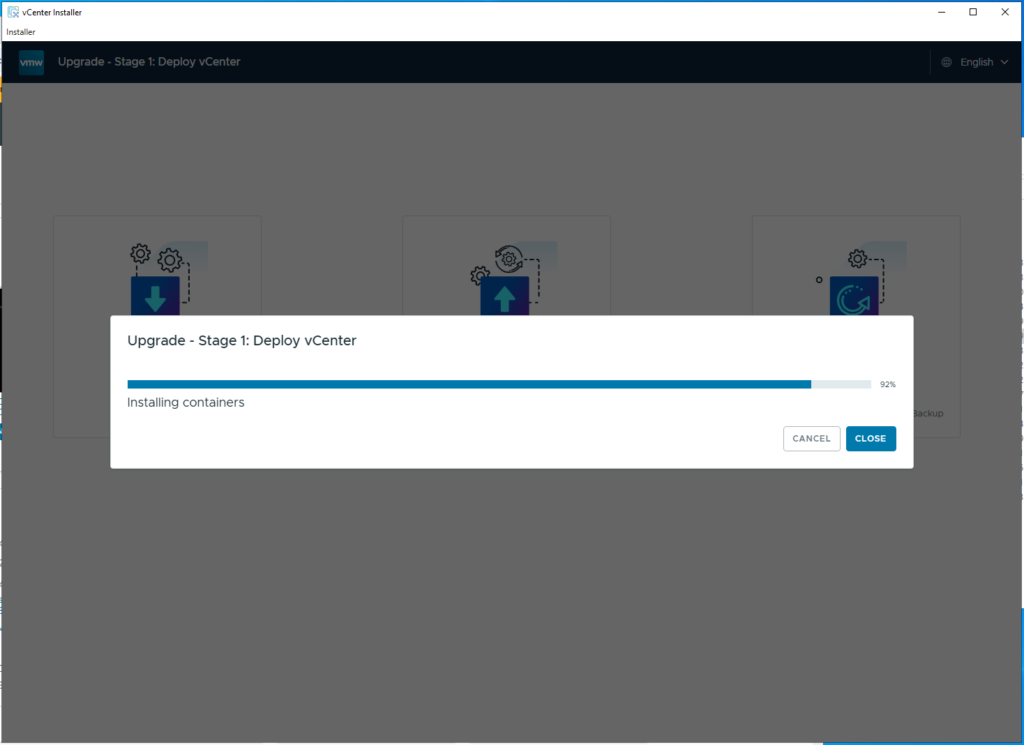
Then it builds the appliance. “Installing containers” is most of the wait.
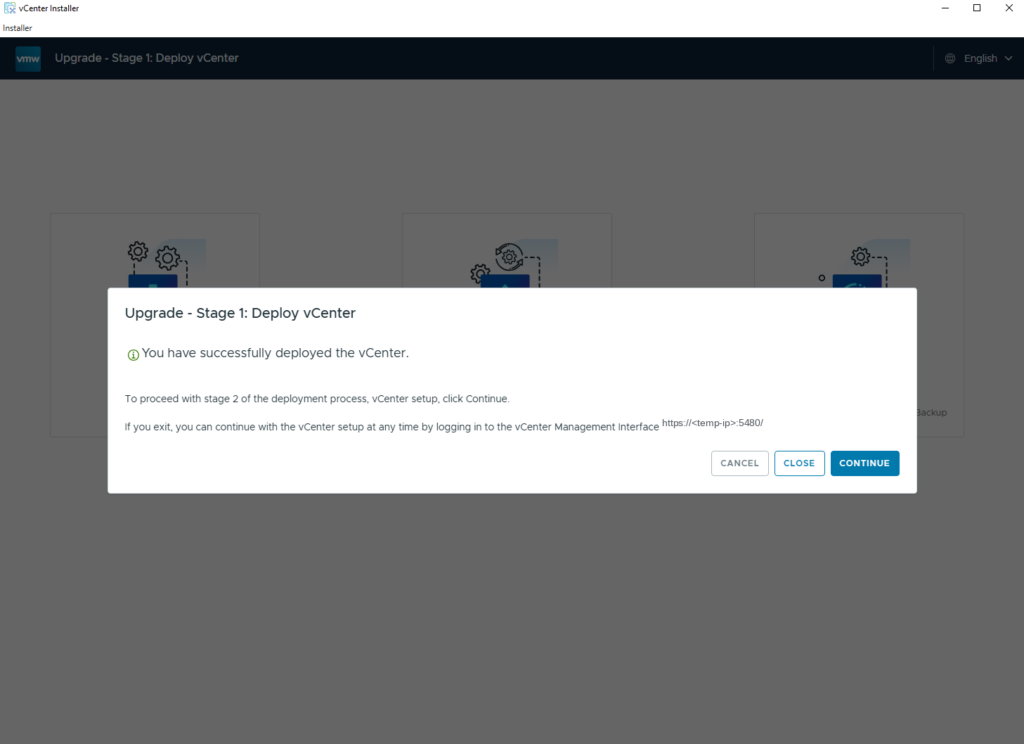
Stage 1 done. Note what the dialog tells you: if you exit here, you can pick stage 2 back up later by logging into the new appliance’s management interface on port 5480 at that temporary address. Useful to know, and another reason to have written the temp IP down.
Step 3: Stage 2, the Long Part
Click Continue and you get the three-step data transfer.
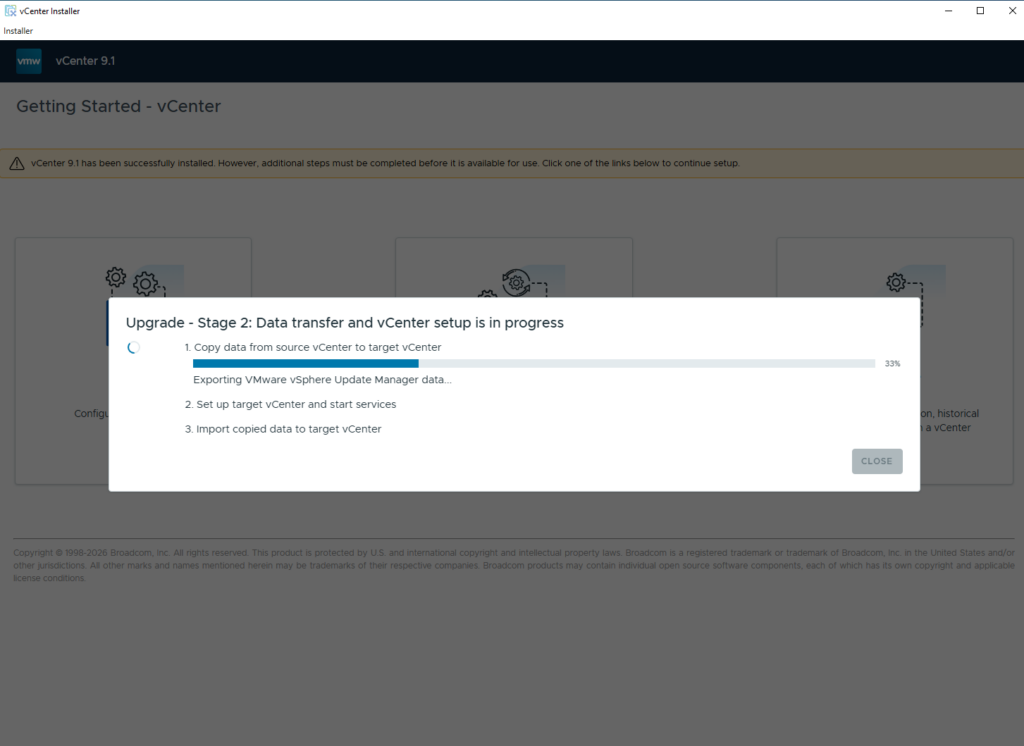
Copy data from source, set up target and start services, import copied data. The sub-status is worth watching because it tells you what’s actually moving: mine sat on Exporting VMware vSphere Update Manager data... for a good while, which, given we’re about to spend the rest of the post inside Lifecycle Manager, feels appropriate.
Two things on this screen. The banner behind the modal already says vCenter 9.1 is installed “however, additional steps must be completed before it is available for use,” which is accurate and slightly alarming if you read it out of context. And the whole of stage 2 took substantially longer than the 30 to 60 minutes I’d budgeted from my own plan document. Two to three hours is the realistic figure for a vCenter this size, so don’t schedule anything tight behind it.
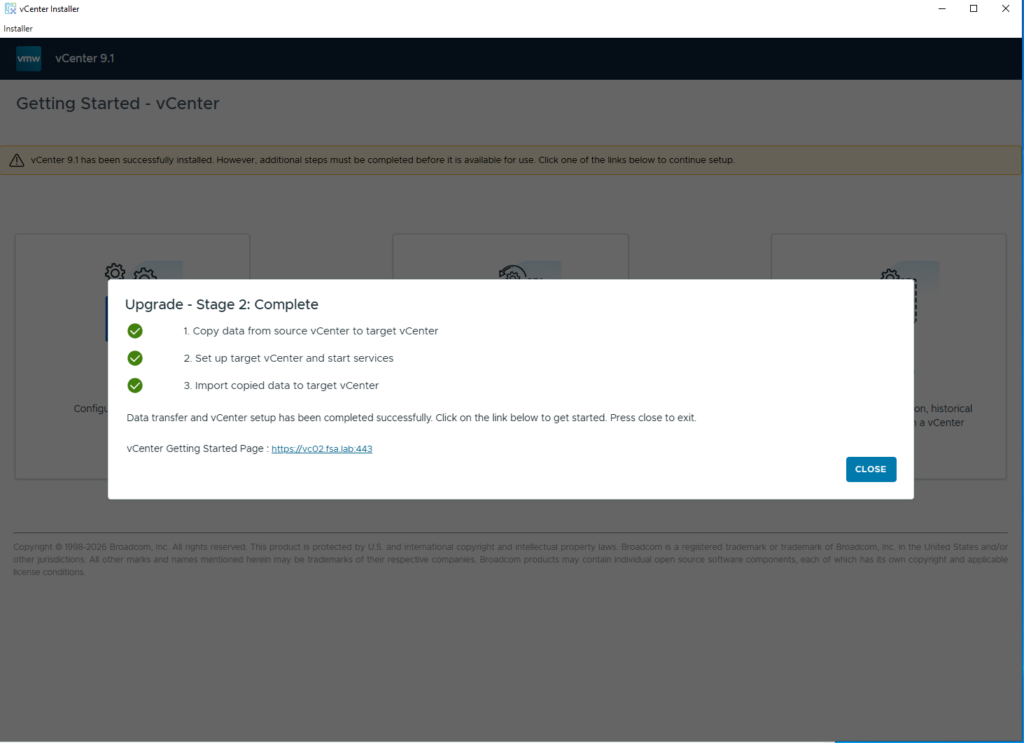
All three green, and a link to the real FQDN rather than the temp IP, which means the new appliance has taken over vc02.fsa.lab and the old one is done. Final build: 9.1.0.0300.
Step 4: Licensing Finally Resolves
Remember the cliffhanger from Part 1? Go back to VCF Operations and look at Licenses & Registration now.
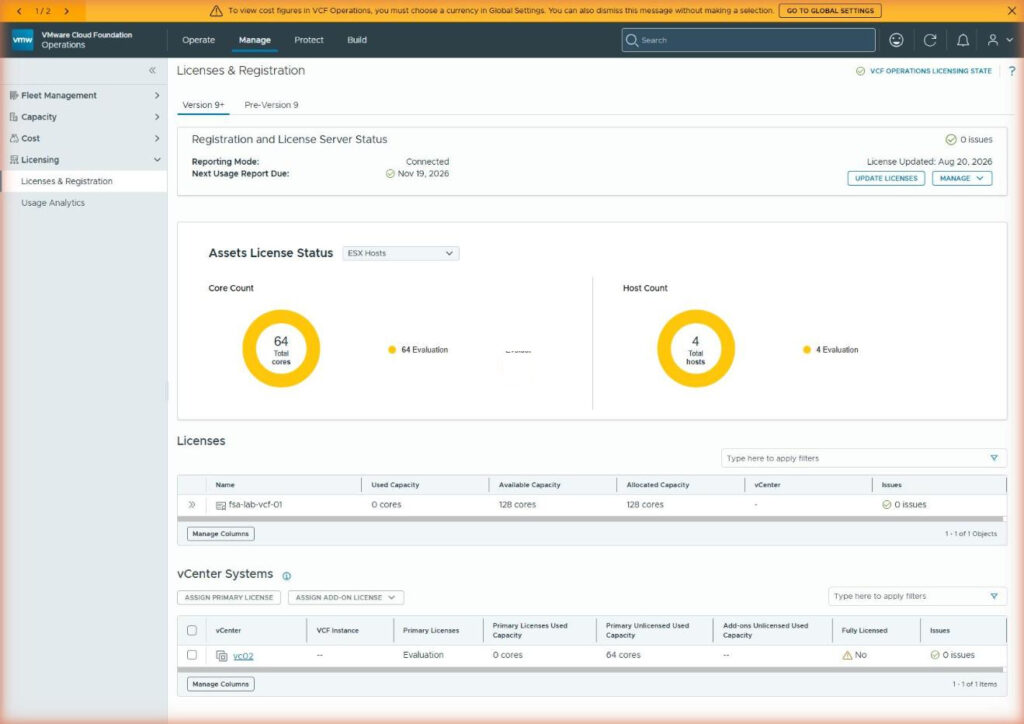
There it is. vc02 has appeared in the vCenter Systems table, because it’s finally a 9.x instance and that table only ever listed 9+. The donuts tell the story: 64 Total cores, all 64 in Evaluation, 4 Total hosts, all four in Evaluation. The row reads Primary Licenses: Evaluation, Primary Unlicensed Used Capacity: 64 cores, Fully Licensed: No.
Meanwhile the license pool above it still shows 128 cores available and nothing used. The entitlement was there the whole time, it just had nothing to attach to.
Select the vCenter and click Assign Primary License.
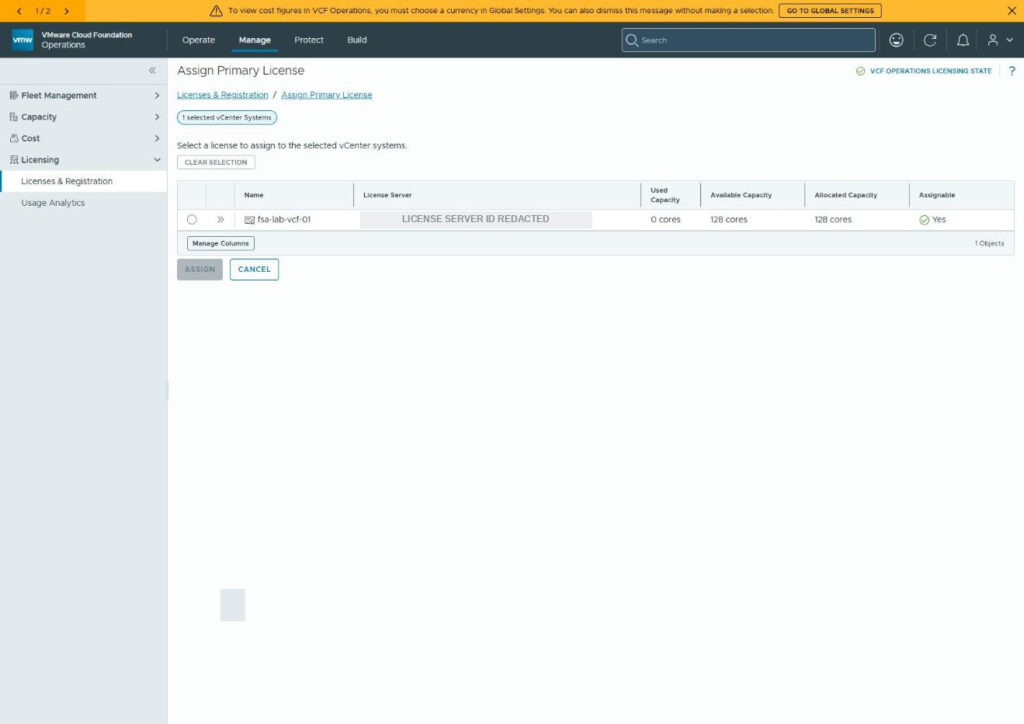
One license, 128 cores available, Assignable: Yes. Pick it and assign.
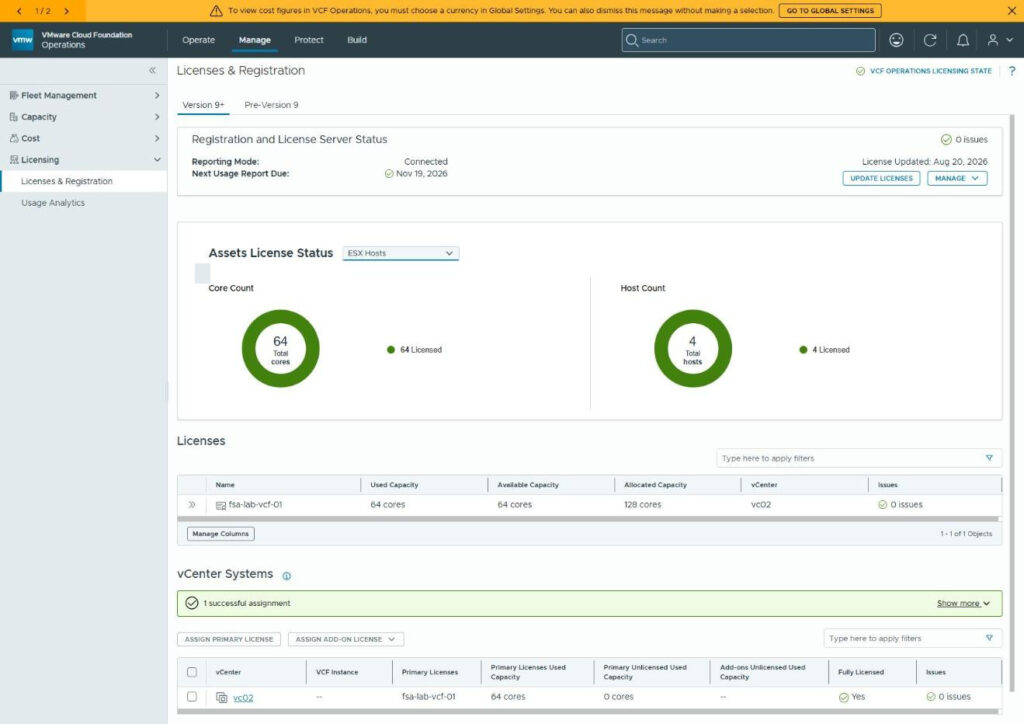
Donuts go green. 64 Licensed cores, 4 Licensed hosts, and the pool now reads Used Capacity: 64 cores with 64 still available. Fully Licensed: Yes.
Sixty-four of 128 cores consumed by four 16-core hosts, which is exactly the arithmetic you’d expect and a nice sanity check that the licensing plane understands your hardware. The other 64 cores are headroom.
That’s the evaluation warning from Part 1 cleared, two phases after the checklist said it should have been.
Part Two: ESX
Step 5: The Cluster Image Survived
First, reassurance. Go to the cluster, Updates, Image.
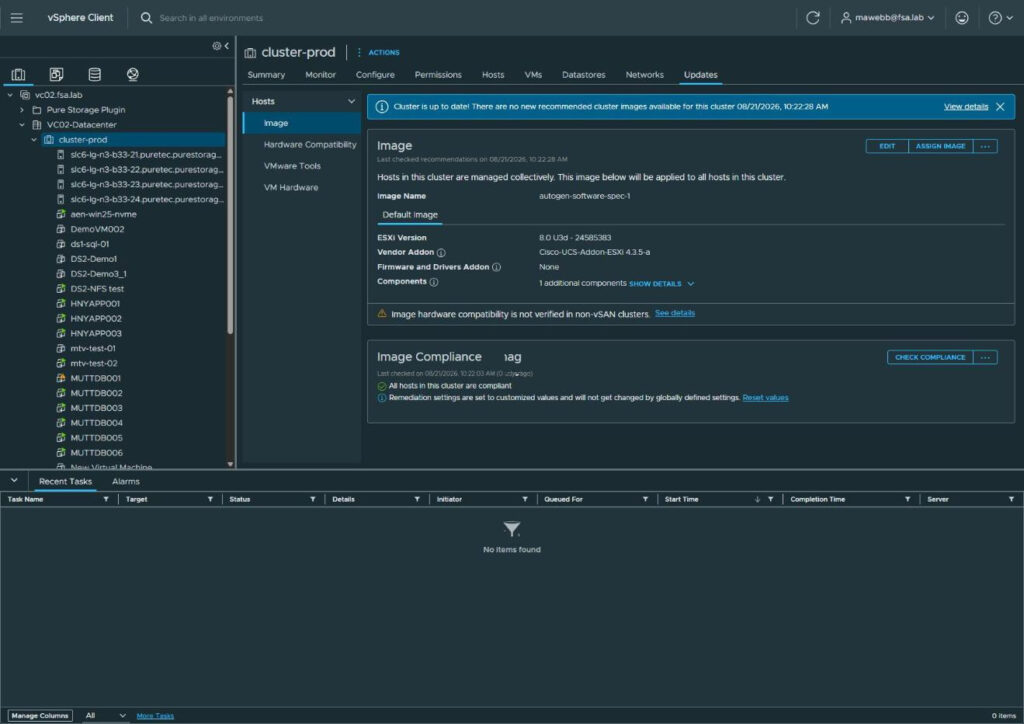
The image definition came through the vCenter upgrade intact: autogen-software-spec-1, ESXi Version 8.0 U3d - 24585383, Vendor Addon Cisco-UCS-Addon-ESXi 4.3.5-a, and all hosts compliant.
That’s the correct state to be in. The hosts are still on 8.0 U3d and still compliant with an 8.0 U3d image. Nothing has upgraded itself behind your back. Now we change the target.
Step 6: The Depot Already Has What You Need
Here’s the pleasant surprise I promised, and it saved me a chunk of work.
My plan said the depot “holds 75 base images but none are 9.x, tops out at 8.0.3,” and on that basis I’d downloaded a roughly 1 GB offline bundle and transferred it to a jump host, ready to import by hand.
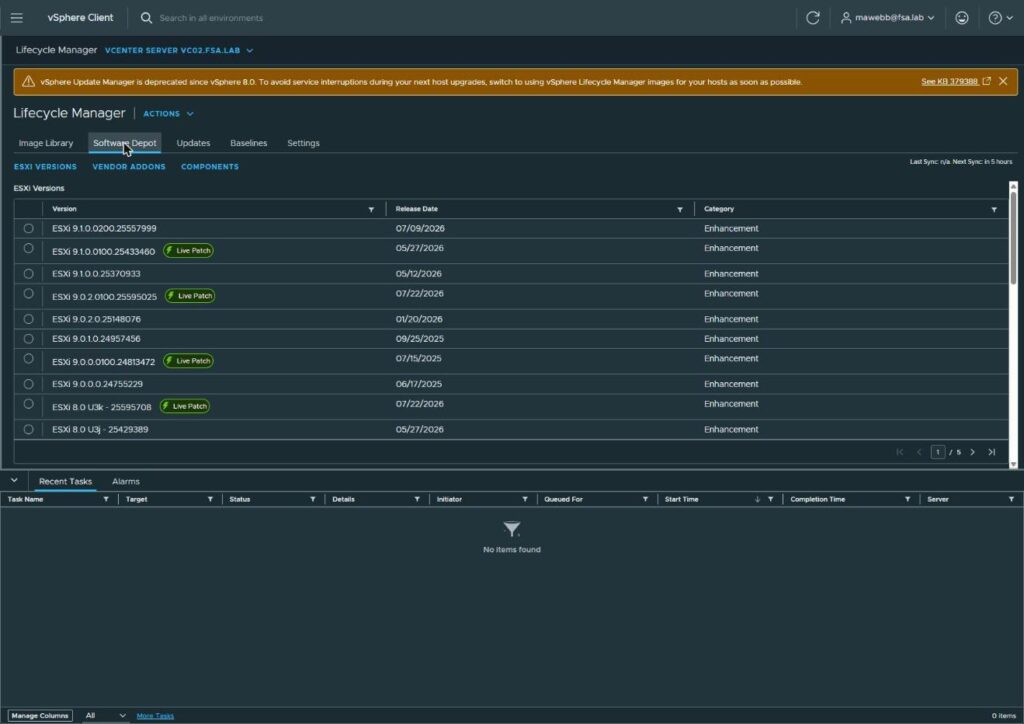
Completely unnecessary. After the vCenter upgrade the depot carried forward and now holds the entire 9.x line, including ESXi 9.1.0.0200.25557999 right at the top. No depot URL to add, no offline bundle to import, no ZIP to transfer.
Worth knowing if you’re planning this out: check your depot after the vCenter upgrade, before you go to the effort of staging bundles offline. Also note the amber banner on this page reminding you that vSphere Update Manager is deprecated and you should move to images, which is a little redundant when you’re standing in the Image Library, but fair enough.
Step 7: Edit the Image, and Let VALIDATE Do Its Job
Back to the cluster image, click EDIT.
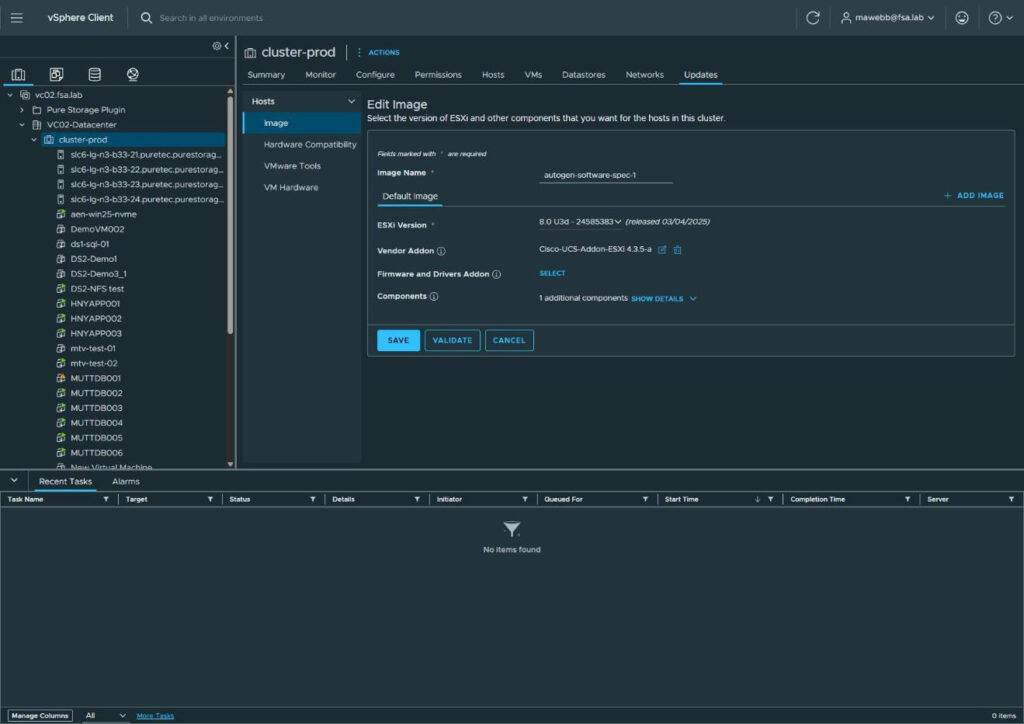
Open the ESXi Version dropdown and the 9.x builds are all there.
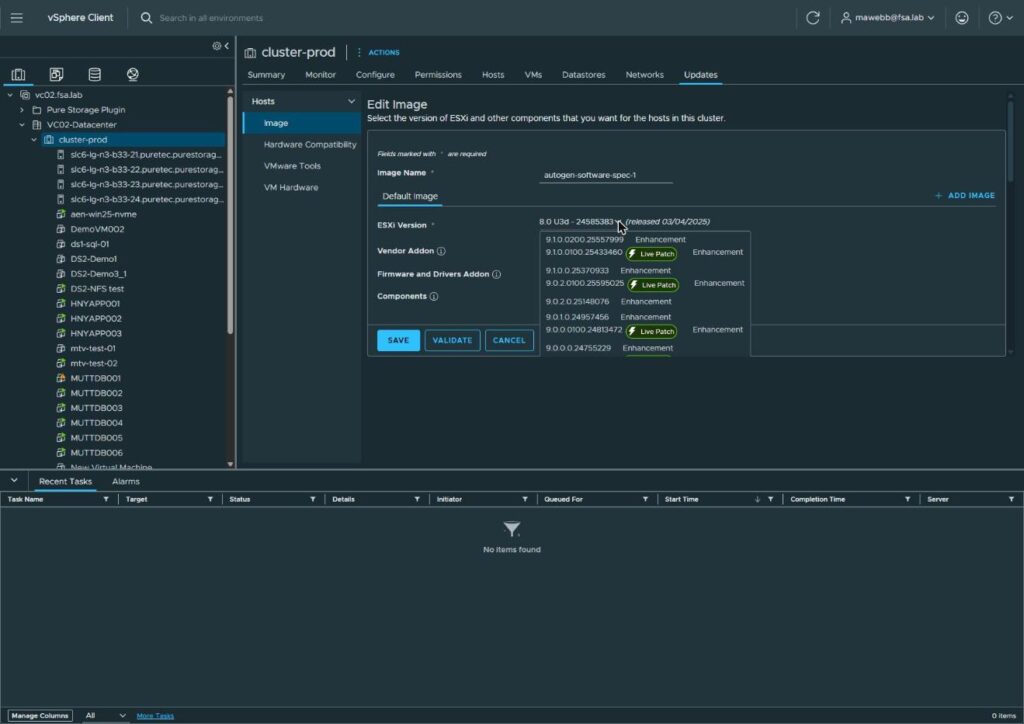
Pick 9.1.0.0200.25557999.
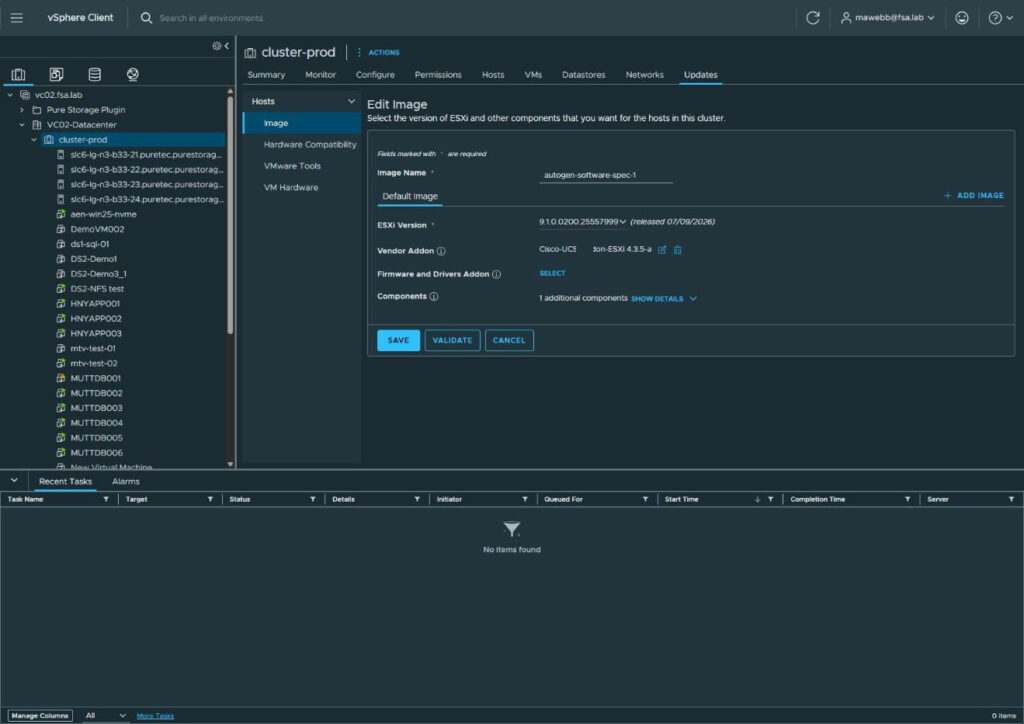
Now look carefully at that screen, because it is a trap and it looks completely fine. Base image: 9.1. Vendor Addon: Cisco-UCS-Addon-ESXi 4.3.5-a, unchanged, because changing the base image doesn’t touch the addon. No error. No warning. SAVE is sitting right there, enabled.
Click VALIDATE instead.
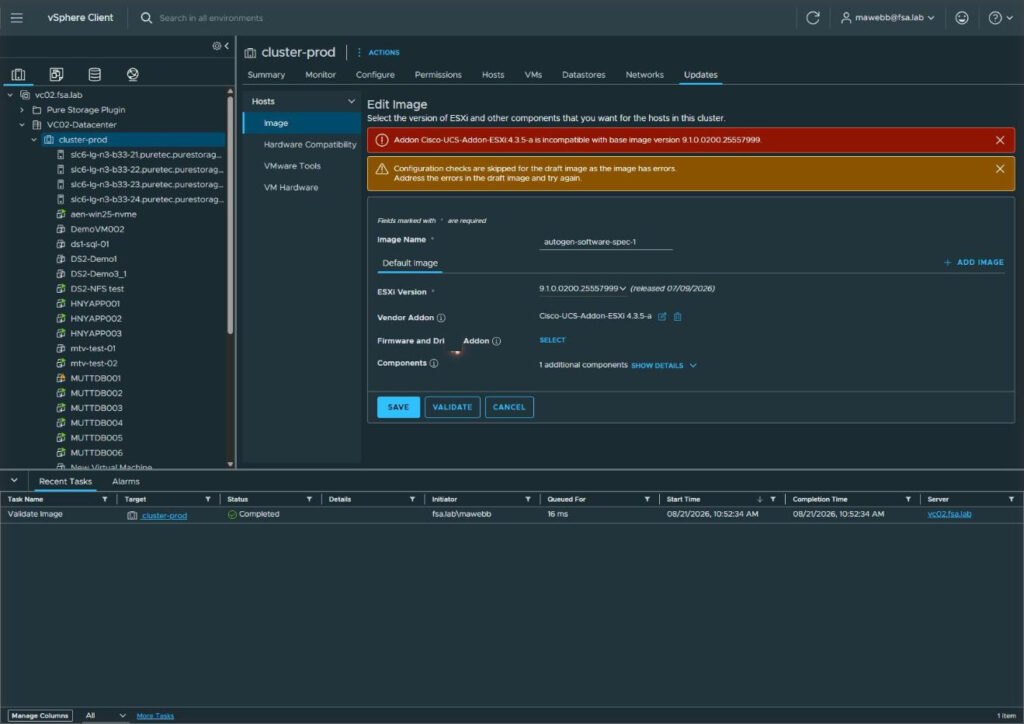
Addon Cisco-UCS-Addon-ESXi:4.3.5-a is incompatible with base image version 9.1.0.0200.25557999.
And underneath it, the bit that matters more:
Configuration checks are skipped for the draft image as the image has errors.
Read that twice. When the draft has errors, vLCM stops running the rest of its checks entirely. So an image with one known error isn’t an image with one problem, it’s an image with one problem and an unknown number of unexamined ones. You don’t get a complete picture until the first error is gone.
The fix was already waiting in the depot. Click the pencil on Vendor Addon.
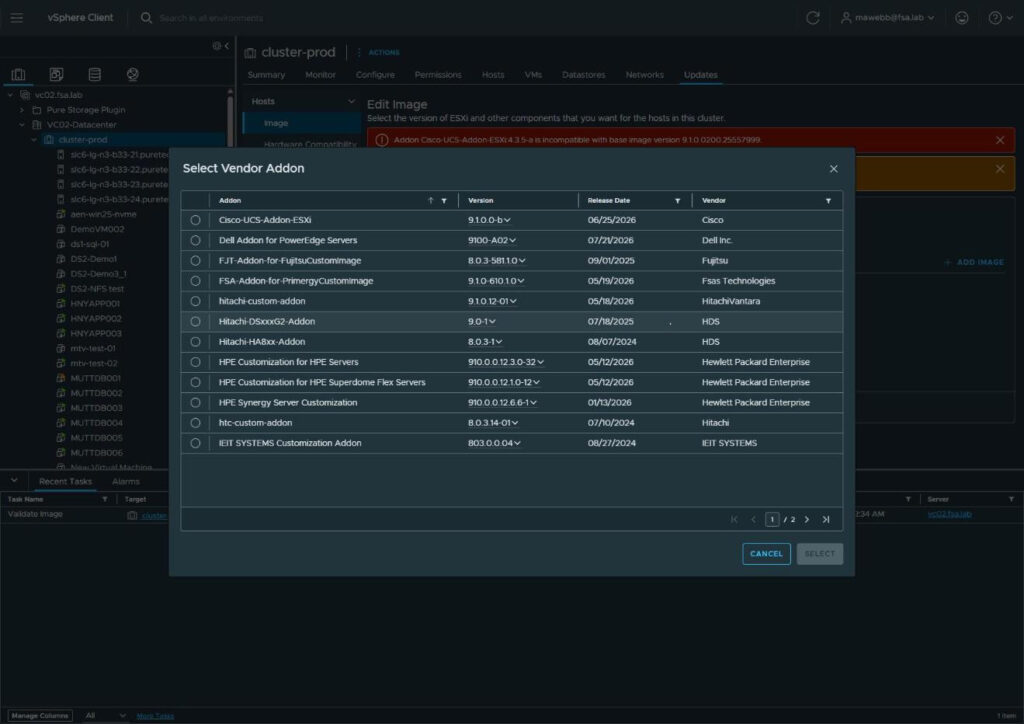
Cisco-UCS-Addon-ESXi version 9.1.0.0-b, released 06/25/2026. Select it, validate again.
“The image is valid.” Now save.
Validate before you save, every single time. It costs you about fifteen milliseconds (my task list says 14 ms and 16 ms for the two runs) and in this case it was the difference between a clean upgrade and pushing an image to four production hosts with a vendor addon that doesn’t belong to the base image. Whatever your vendor, assume the addon pins to the base image, because it does.
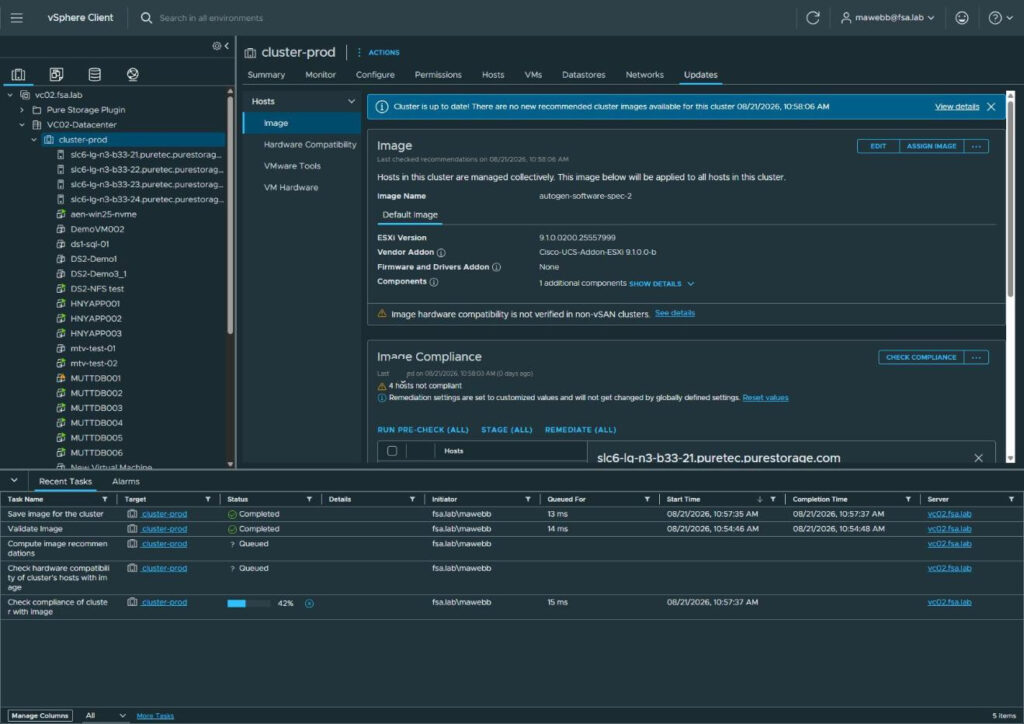
Saved as autogen-software-spec-2 (it versions the spec rather than overwriting, which is a small kindness), and compliance immediately flips to 4 hosts not compliant. That’s the gap we’re about to close.
Step 8: Pre-Check, and a Look at Quick Boot
Before remediating, expand a host and read its detail panel.
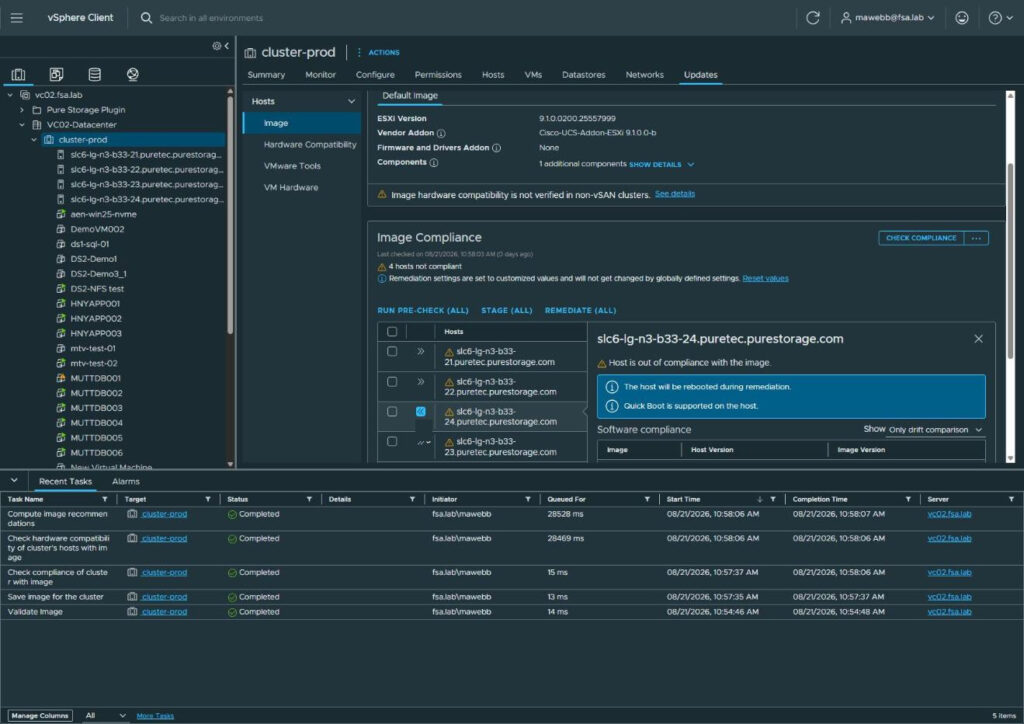
Two lines in that blue box, and both matter:
The host will be rebooted during remediation.
Quick Boot is supported on the host.
Quick Boot skips the hardware power cycle and restarts only the hypervisor. On these C220 M6s that is the difference between a long evening and a very long evening, and on Cisco UCS specifically the full POST is not fast. If your hardware supports it, this is free time back.
Then run the pre-check.
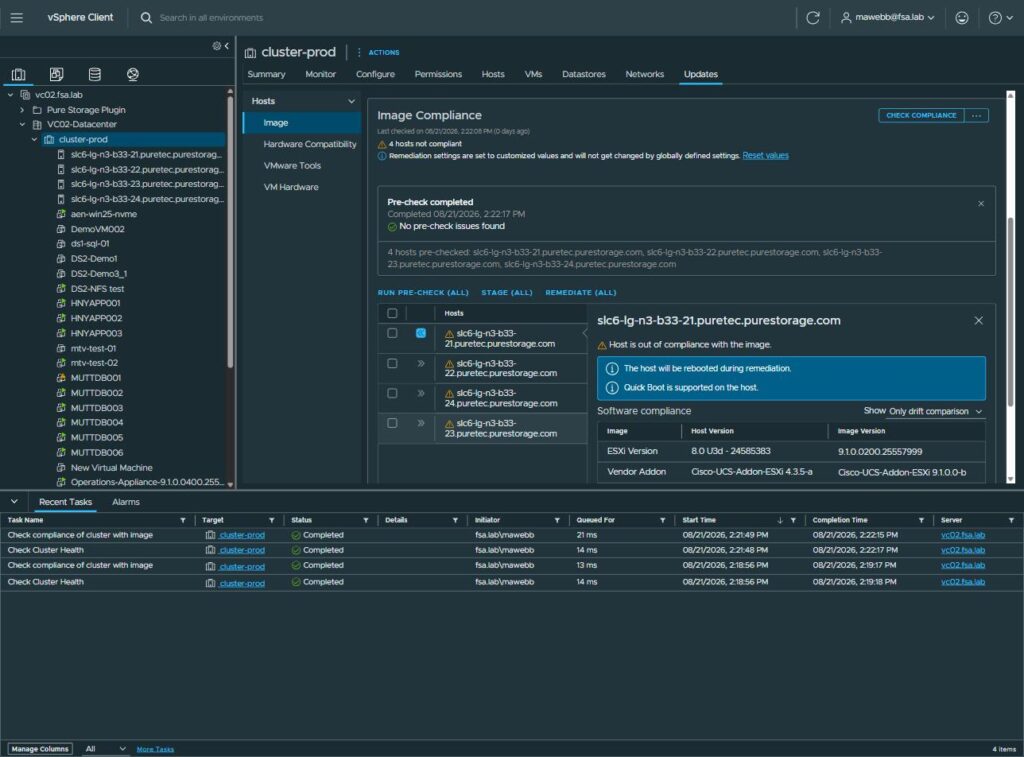
No pre-check issues found, all four hosts checked. And the clearest single screen in this whole post is in the right-hand panel: the Software compliance table, showing exactly what’s about to change.
| Host Version | Image Version | |
|---|---|---|
| ESXi Version | 8.0 U3d – 24585383 | 9.1.0.0200.25557999 |
| Vendor Addon | Cisco-UCS-Addon-ESXi 4.3.5-a | Cisco-UCS-Addon-ESXi 9.1.0.0-b |
That’s the diff, in the product’s own words. If anything there surprises you, now is the moment.
Step 9: Remediation Settings
Worth opening these deliberately rather than inheriting whatever’s there.
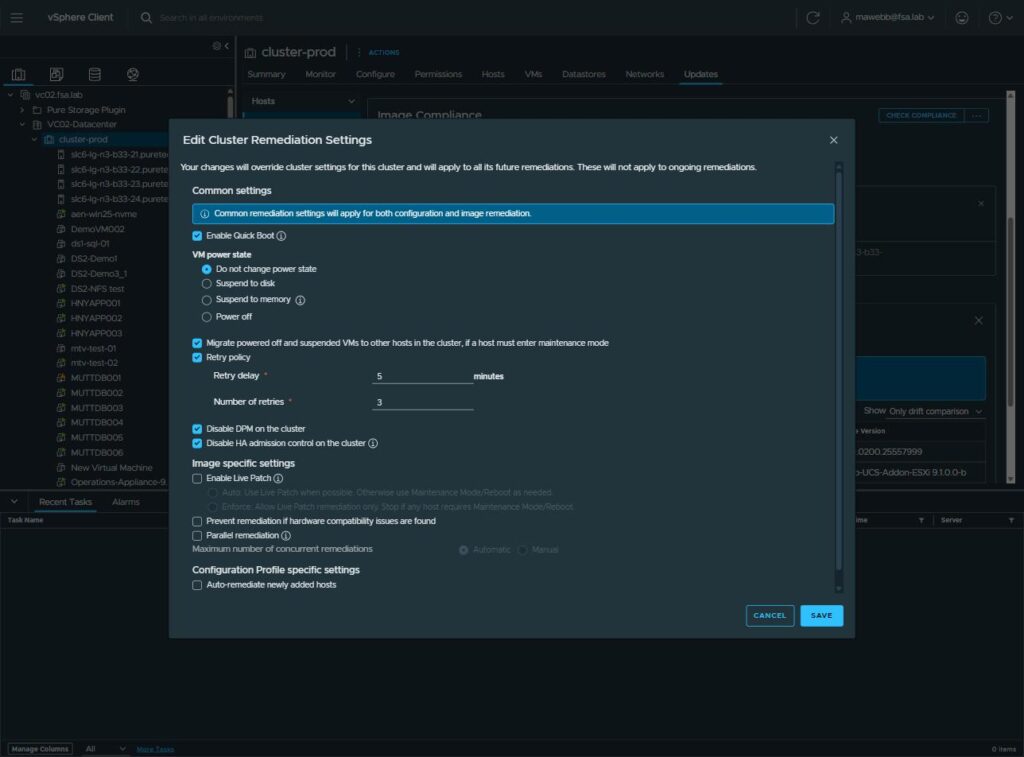
What I ran with, and why:
- Enable Quick Boot: on. Per above. Free time.
- VM power state: Do not change. DRS is fully automated and will evacuate hosts. Leave it alone.
- Migrate powered off and suspended VMs: on. Otherwise a powered-off VM can pin a host out of maintenance mode, which is an infuriating way to stall at 2am.
- Retry policy: on, 5 minute delay, 3 retries. Cheap insurance against a host that’s slow to drain.
- Disable DPM on the cluster: on. You do not want power management parking a host mid-upgrade.
- Disable HA admission control on the cluster: on. This one has a consequence, and it shows up again in Part 3. vLCM disables admission control so a host can always enter maintenance mode. SDDC Manager’s default is the opposite. Once SDDC Manager owns lifecycle after converge, those two systems disagree about who makes room during host upgrades, and converge will flag it. Setting it here is correct for this phase, just know you’ll meet it again.
- Parallel remediation: off, and Live Patch: off. On four hosts, serial is the right answer.
Step 10: Review Remediation Impact
This dialog is one of the better pieces of writing in the product and most people click straight past it.
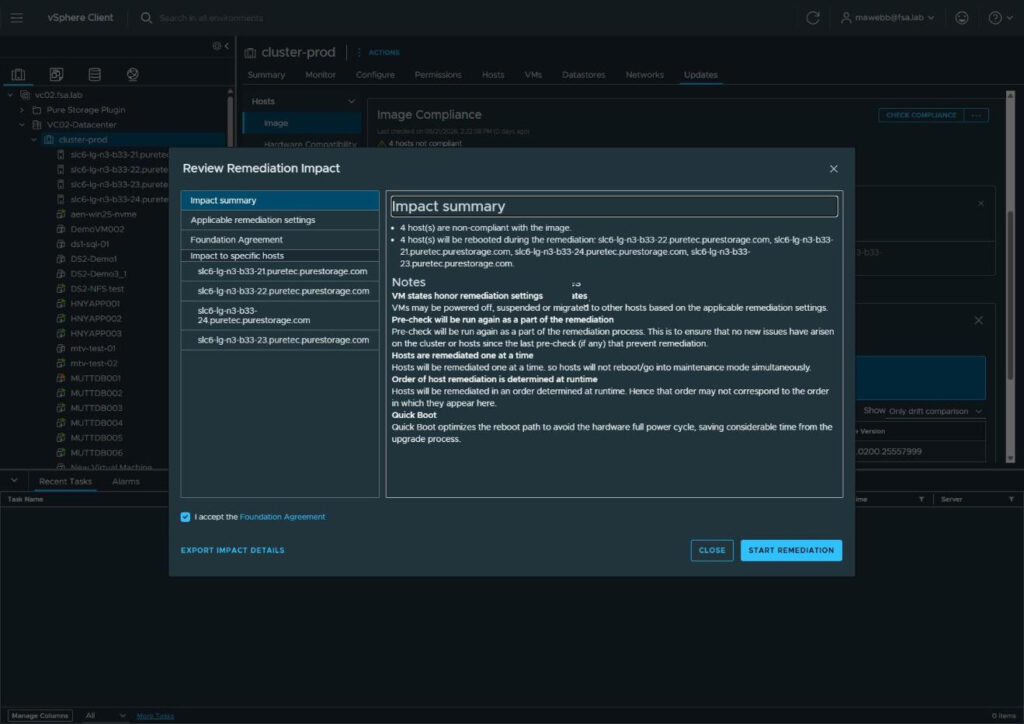
Four hosts non-compliant, four hosts will be rebooted, and then five notes that are all worth reading. The two I’d pull out:
Pre-check will be run again as a part of the remediation. This is to ensure that no new issues have arisen on the cluster or hosts since the last pre-check.
So the pre-check you just ran isn’t the gate, it’s a preview. Good design.
Order of host remediation is determined at runtime. Hosts will be remediated in an order determined at runtime. Hence that order may not correspond to the order in which they appear here.
Believe this one. My host list showed b33-21 first and the remediation did not start with b33-21. If your runbook says “watch host 21 go down first,” your runbook is wrong, and worse, you’ll spend the first ten minutes of a maintenance window wondering why nothing is happening on the host you’re staring at.
Tick the Foundation Agreement, start remediation.
Step 11: Watch It Go
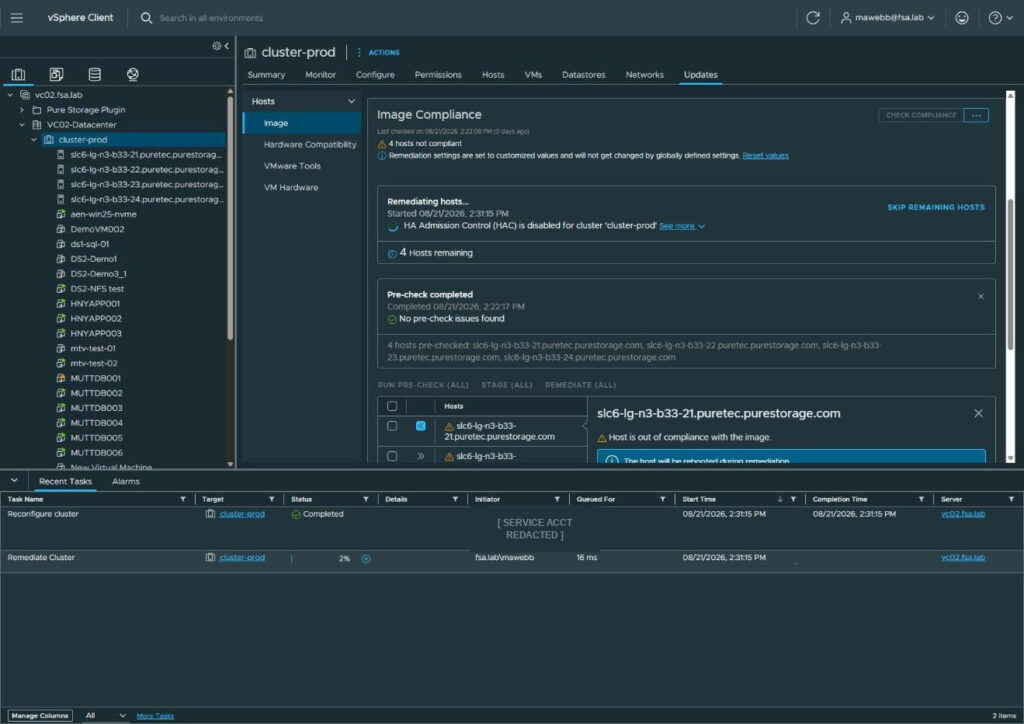
The card tells you what it’s doing to your cluster as it does it: “HA Admission Control (HAC) is disabled for cluster ‘cluster-prod'”, which is the remediation setting from Step 9 being applied for real. 4 Hosts remaining, and a SKIP REMAINING HOSTS escape hatch if something goes sideways.
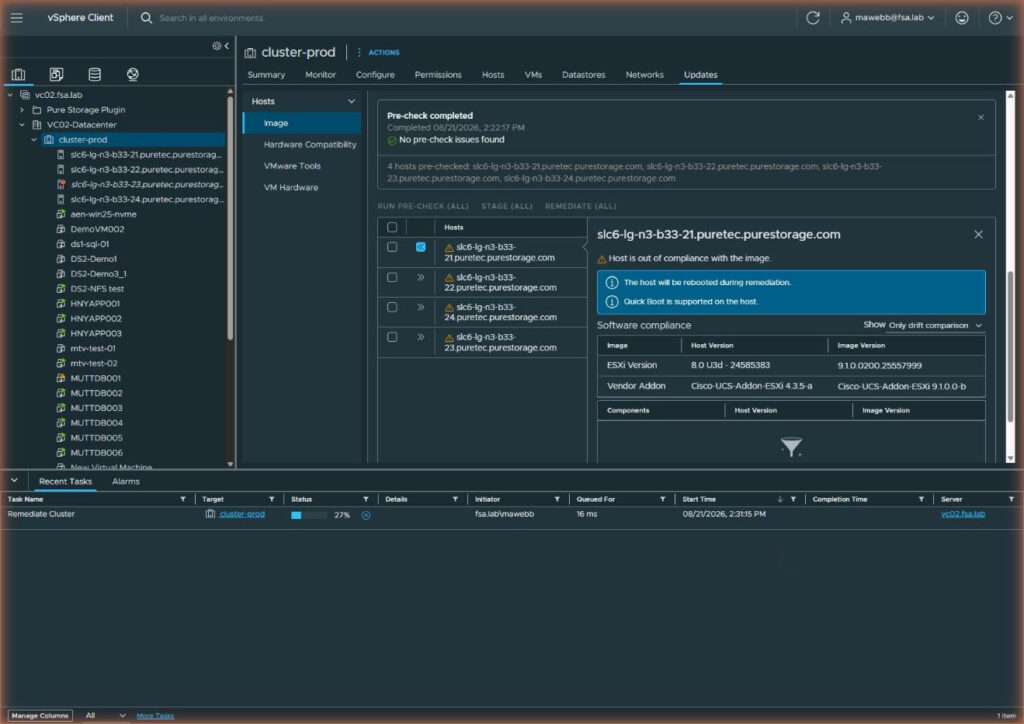
And there’s the runtime ordering, visible in the wild. The task sits at 27%, and in the left-hand inventory tree b33-23 has gone italic with a red icon, which is vCenter’s way of saying that host is disconnected and rebooting. Not b33-21, which was top of the list. Exactly as the dialog warned.
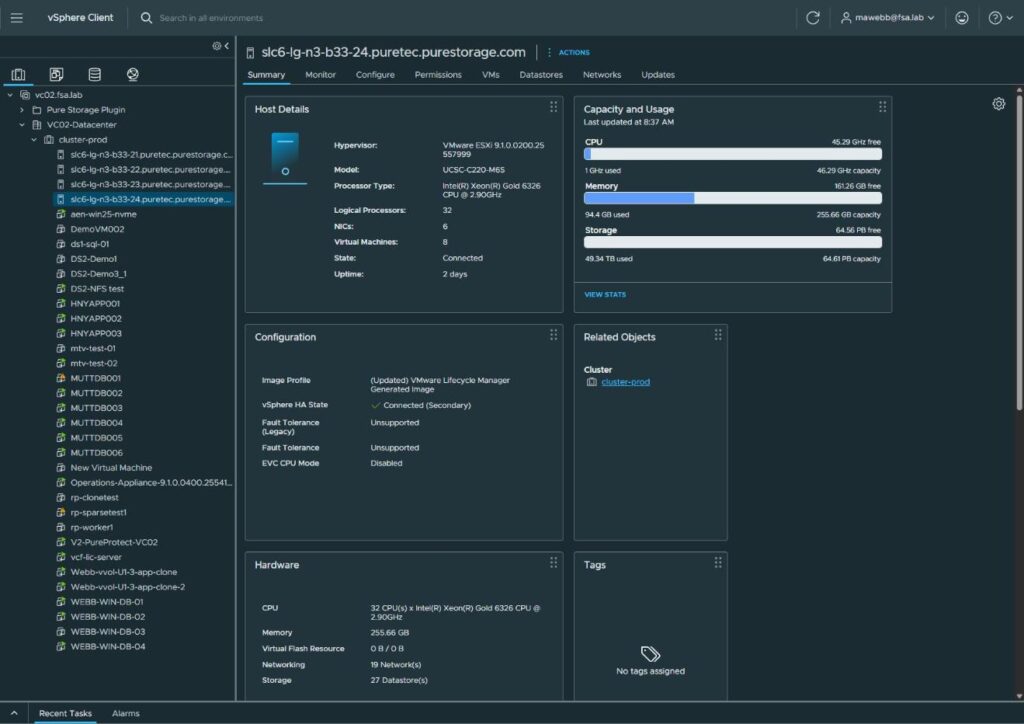
Host by host, they come back on VMware ESXi 9.1.0.0200.25557999. Image Profile reads (Updated) VMware Lifecycle Manager Generated Image, HA state reconnects, VMs come home.
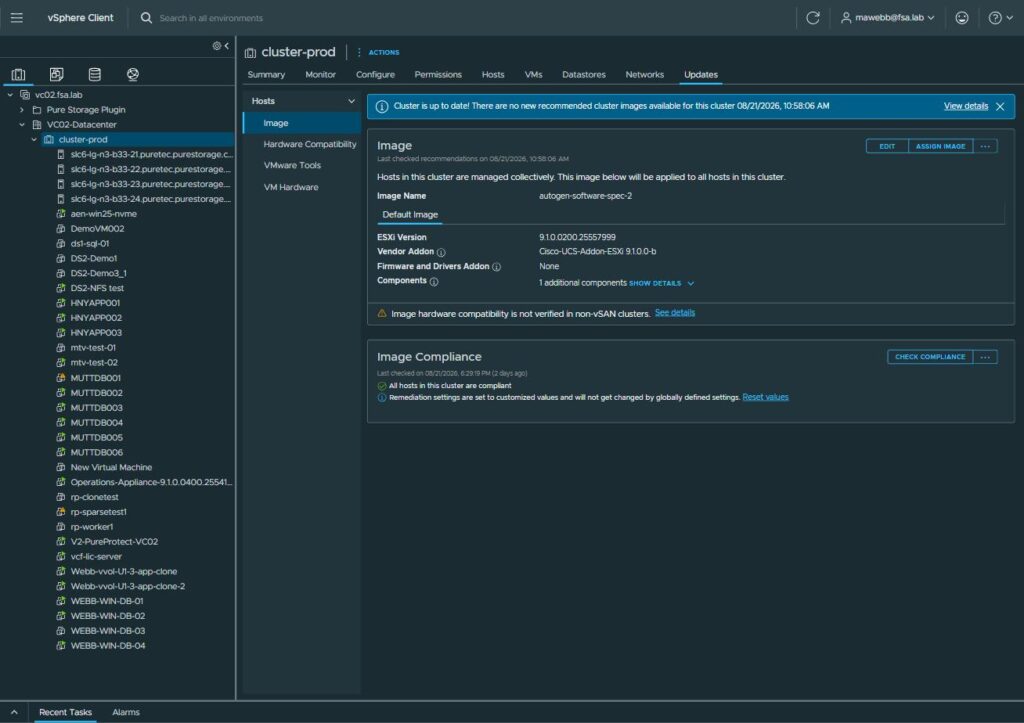
All hosts in this cluster are compliant. Four hosts, ESX 9.1, matching vendor addon, one image.
Wrap Up
vCenter on 9.1.0.0300, four hosts on 9.1.0.0200.25557999, 64 of 128 cores licensed, and the evaluation banner finally gone. Phases four and five of seven, done.
Three things I’d carry out of this one.
Check your build numbers against the interoperability matrix, not against a dropdown. The back-in-time restriction is the only thing in this entire project that could have cost me the upgrade path outright, and the depot would have handed me the offending build without a word. That specific gate is closed as of 9.1.1, but the class of problem isn’t going anywhere.
VALIDATE is not a formality. It caught a vendor addon pinned to the wrong base image, and more usefully it told me that an image with errors doesn’t get its other checks run at all. Fifteen milliseconds.
Read the Review Remediation Impact dialog. Somebody wrote five actually useful notes in there and the product gives you no indication that they’re worth more than the usual pre-flight boilerplate. The one about runtime ordering will save you a confusing ten minutes.
Next is converge, which is where this stops being a vSphere upgrade and starts being a VCF deployment. It’s also where that vc01.fsa.lab entry from Step 1 comes back with teeth, where I learn that the datastore I land vCenter on quietly becomes something much more important, and where a DNS field in an OVA wizard silently drops its contents and sends me chasing an error message pointing at entirely the wrong company.
The drums are at the gate now. Bring coffee.
Like everything in this space, some of these build numbers have already rolled and at least one of the restrictions above has already lifted. Running the same upgrade and your path forked somewhere mine didn’t? Find me on LinkedIn and let’s compare notes.
References:
- Back-in-Time Upgrade Restriction for vSphere 8.0 Update 3j and later (KB 448135)
- vSphere and VMware Cloud Foundation 9.1 “Back-in-Time” Release Support (KB 450972)
- VMSA-2026-0006.1 Impact on Upgrade Paths and Compatibility (KB 454369)
- VCF Upgrade Planner
- VMware Product Interoperability Matrix
- Upgrading vSphere 8 and Optionally vSAN and Aria Operations 8 to 9.1
- Upgrade Sequence and Related Issues for VCF and vSphere Foundation 9.1 (KB 440630)
- William Lam: VCF 9.1 vSphere Back-in-Time Support for Upgrade, Converge and Import